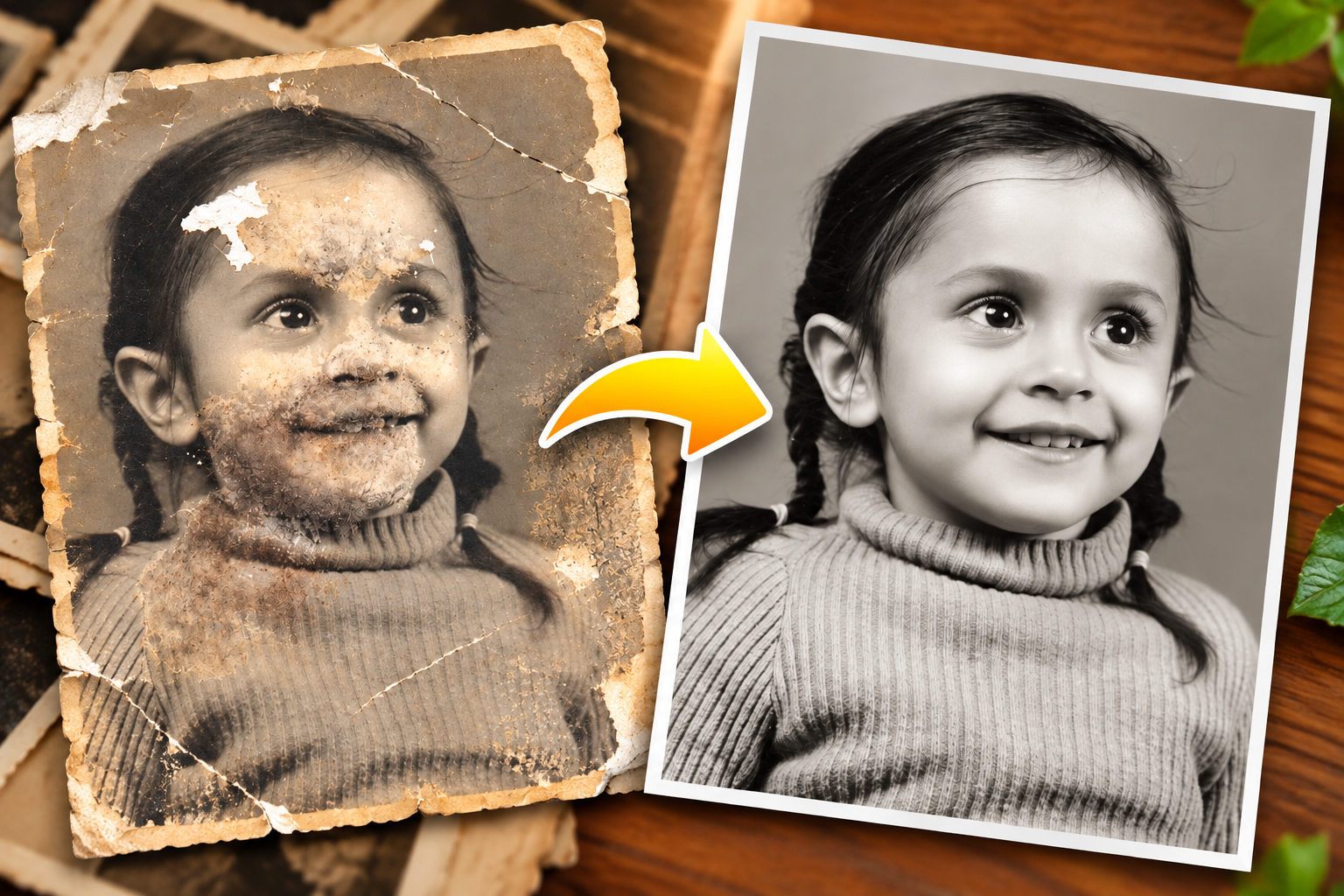
If you have an old photograph filled with scratches, faded colors, blur, or missing details, you’ve probably wondered whether it can still be saved. Modern AI can repair and enhance many common forms of photo damage, but understanding what AI changes—and what it cannot truly recover—is important. In this guide, we’ll explain photo restoration, how AI photo restoration works, and how to restore an old photo step by step using Photo AI Studio.
Key Takeaways
- Photo restoration repairs and enhances damaged, faded, scratched, discolored, or degraded photographs while aiming to preserve recognizable visual details.
- AI photo restoration can improve scratches, noise, fading, blur, contrast, and other common forms of image degradation with less manual editing.
- Photo AI Studio provides an AI-assisted workflow for enhancing and restoring old photographs through dedicated restoration options.
- Restored photographs should always be compared with the original to identify unnatural details, excessive sharpening, or AI-generated changes.
- Original photographs should be preserved separately because AI may reconstruct details that cannot be recovered exactly from damaged source material.
- High-quality digital backups help preserve restored family, wedding, childhood, and historical photographs for future generations.
- Natural-looking restoration should improve the photograph without unnecessarily changing the identity, expression, texture, or character of the original image.
What Is Photo Restoration and How Does It Work?
Photo restoration is the process of repairing, enhancing, and preserving damaged, faded, scratched, discolored, or degraded photographs. For example, an old wedding photograph with dust, scratches, faded colors, and blurry faces can be digitally processed to improve its appearance while retaining its recognizable visual character.
First, photo restoration usually involves several corrections rather than one single adjustment. These corrections can include scratch removal, noise reduction, color correction, contrast improvement, sharpening, facial enhancement, and reconstruction of damaged areas.
For example, a faded family photograph may need color correction, while a heavily scratched portrait may require both damage removal and detail enhancement.
Moreover, restoration is different from simply increasing image resolution. Upscaling increases the pixel dimensions of an image, while restoration attempts to correct visual damage and improve the photograph’s appearance.
“If you’re working with low-resolution photos, check out our guide on How to Upscale Image Without Losing Quality for step-by-step tips on enlarging images while keeping them sharp and clear.”
What Does Photo Restoration Actually Change?
Photo restoration changes damaged or degraded visual information to produce a cleaner and more usable image. For example, a restoration system can identify a visible scratch and attempt to replace the affected pixels with information that visually fits the surrounding area.
At the same time, restoration does not magically recover every original pixel. When information has been permanently lost, AI may estimate or reconstruct details instead of recovering the exact original detail.
That distinction matters most when restoring faces. A restoration tool might make an unclear face appear sharper, but some newly visible details may be AI-generated rather than historically accurate.
Why Is Photo Restoration Important for Old Photographs?
Photo restoration matters because it helps preserve visually important memories and records before further physical or digital degradation occurs. For example, restoring a family photograph can create a high-quality digital copy that can be shared with relatives without repeatedly handling the fragile original.
Moreover, the Library of Congress explains that preventive preservation—including appropriate storage, handling, and environmental conditions—is among the most effective ways to protect photographs.
For example, a 40-year-old wedding photograph may have sentimental value even if it has no commercial value. Digital restoration can make that photograph easier to preserve, print, share, and include in a family archive.
Photographic preservation is a large-scale challenge. The U.S. National Archives currently preserves about 41 million photographs, demonstrating the importance of protecting photographic records for long-term access. — Source: National Archives, 2026
Which Photos Can Benefit From Restoration?
Family, wedding, childhood, memorial, historical, and vintage photographs can all benefit from digital restoration. For example, a scanned childhood photograph with faded colors and dust marks can be restored before being included in a digital family album.
In addition, restoration can be useful for:
- Old family albums
- Wedding photographs
- Childhood portraits
- Black-and-white photographs
- Historical photographs
- Genealogy projects
- Memorial photographs
- Vintage photographs
- Digital scrapbooks
- Social media projects
Large photographic collections contain both physical and digital materials that require preservation. The National Archives’ Still Picture Branch holds more than 14 million analog photographs and more than 3 million digital photographs, illustrating the scale of photographic preservation. — Source: National Archives, 2022
If you’re new to AI image generation, check out our guide on How to Generate AI Photos Using Text or Reference Images: A Step-by-Step Tutorial to learn the basics before diving deeper into advanced techniques.
What Types of Damage Can Photo Restoration Fix?
Photo restoration can improve many common forms of photographic damage, including scratches, dust, stains, fading, discoloration, noise, blur, low contrast, and missing visual details. For example, an old printed photograph may contain several problems at the same time, requiring multiple restoration adjustments.
Scratches, Dust, Stains, and Tears
Physical marks are among the most recognizable problems in old photographs. For example, a scratched portrait may contain thin white or dark lines crossing a person’s face, clothing, or background.
AI restoration can attempt to identify these unwanted marks and reconstruct the surrounding image area. However, large tears or missing sections may require manual editing because there may not be enough surrounding information for accurate reconstruction.
Faded Colors and Discoloration
Color restoration corrects faded, yellowed, uneven, or discolored tones in aging photographs. For example, a vintage color photograph may have originally contained blue clothing that now appears gray or yellow because of aging and storage conditions.
AI-based color correction can analyze surrounding tones and estimate more balanced colors. Black-and-white photographs can also be colorized with AI, although the resulting colors are interpretations rather than guaranteed historical records. Adobe’s current Photoshop tools, for example, include AI-based colorization capabilities.
Blur, Noise, and Low Contrast
Image enhancement can reduce visible noise, improve contrast, and sharpen some soft details in old photographs. For example, a scanned portrait with a slightly blurry face may become easier to view after enhancement.
However, sharpening cannot recreate every detail that was never captured. Excessive sharpening can also create halos, artificial edges, or unnatural skin textures.
How Does AI Photo Restoration Work?
AI photo restoration uses image-analysis and enhancement techniques to improve damaged photographs and reconstruct visual details that may have been degraded or lost. For example, an AI system can analyze patterns around a scratch and estimate what the affected area might look like based on surrounding visual information.
First, the system analyzes the input photograph. It can identify visual characteristics such as edges, textures, faces, colors, contrast, and damaged regions.
Second, the restoration process applies specialized corrections. These may include noise reduction, sharpening, color correction, scratch removal, and facial enhancement.
Third, the system generates the processed result for you to review. This workflow is similar in principle to other AI image-editing systems that analyze image content and apply machine-learning-based corrections. Adobe, for example, describes its Neural Filters as AI-powered tools for retouching, enhancement, colorization, and other image corrections.
What Is the Difference Between Enhancement and Reconstruction?
Image enhancement improves existing visual information, while reconstruction attempts to generate plausible information for areas where the original information is missing or severely damaged. For example, increasing contrast in an existing face is enhancement, while generating missing facial detail inside a torn area is reconstruction.
As such, AI restoration should be treated as an interpretation of damaged visual information, not necessarily an exact historical recovery.
If your images look blurry or pixelated after resizing, check out our guide on How to Upscale Image Without Losing Quality to fix that in just a few steps.
Can AI Restore Scratched and Damaged Photos?
AI can remove or reduce many scratches, dust marks, stains, and other visible imperfections in photographs. For example, a portrait containing dozens of small scratches can often be processed automatically instead of requiring every mark to be manually repaired.
Moreover, AI-based restoration can be particularly useful when damage appears across large areas. Instead of manually cloning pixels across every damaged region, an automated system can analyze the surrounding content and attempt to repair the affected area.
That being said, severe tears, completely missing sections, heavily obscured faces, and major physical damage may require manual editing or professional restoration.
When Does Manual Restoration Still Matter?
Manual editing remains useful when a photograph contains complex damage that AI cannot interpret reliably. For example, if half of a person’s face is missing from the source photograph, an AI system may generate a plausible face, but it cannot guarantee that the reconstructed features match the person’s real appearance.
Professional restoration may therefore combine AI processing with manual retouching, especially for historically significant photographs.
How Can You Restore an Old Photo With Photo AI Studio?
Restoring an old photo with Photo AI Studio involves uploading the damaged image, selecting Photo Restoration, enabling appropriate restoration options, generating the result, and reviewing the before-and-after output. For example, you can use the workflow below to process an old family or childhood photograph.
Photo AI Studio

Step 1: Open Photo AI Studio
First, search for Photo AI Studio on Google and open the official Photo AI Studio website. For example, once the website loads, you can access its dashboard and available AI image tools.


Step 2: Go to Edit & Enhance
Next, select Edit & Enhance because the photo restoration tools are available inside this section. For example, the dashboard provides different areas for creating, editing, and enhancing images.
Inside this section, you can find several tools, including Photo Editor, Enhance Image, Face Swap, and Photo Restoration.

Step 3: Select Photo Restoration
Choose Photo Restoration to open the dedicated restoration workflow. For example, this tool is designed for photographs that need improvements such as detail enhancement, color correction, or scratch removal.

Step 4: Upload the Damaged Photograph
Upload the old photograph from your computer using the Upload Photo section. For example, you might upload a scanned childhood picture containing scratches, faded colors, and low image quality.
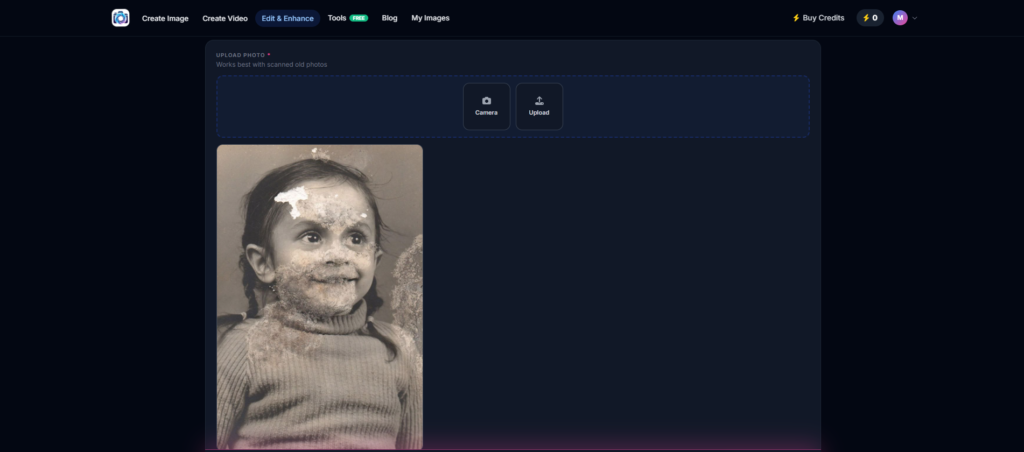
Use the highest-quality version you have available rather than repeatedly uploading a compressed social-media copy.
Step 5: Enable Enhance Image
Turn on Enhance Image when the photograph has low resolution, soft details, or insufficient sharpness. For example, a small scanned photograph may benefit from additional detail enhancement before you save the final version.
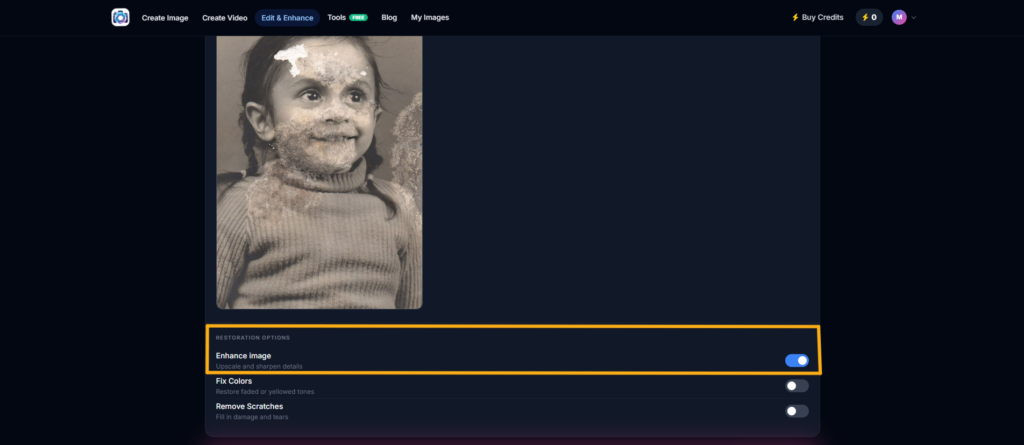
Enhancement can make facial features, clothing edges, and background details easier to see, although excessive sharpening can make the result look artificial.
Step 6: Enable Fix Colors
Turn on Fix Colors when the photograph has faded, yellowed, or uneven colors. For example, an old wedding photograph may have developed a strong yellow or brown cast over time.
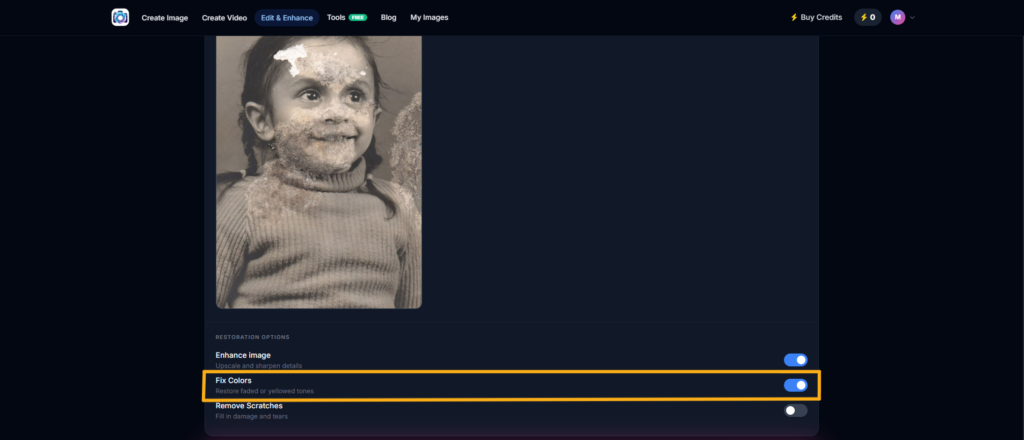
This option can help create a more balanced appearance while retaining the overall character of the original image.
Step 7: Enable Remove Scratches
Turn on Remove Scratches when the photograph contains visible scratches, marks, stains, or similar surface damage. For example, an old printed photograph with several horizontal scratches can be processed to reduce those visible imperfections.
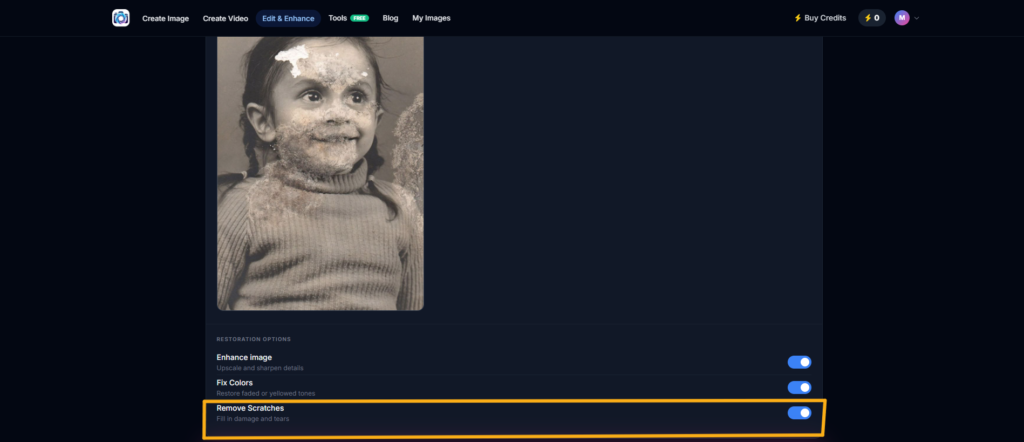
For this restoration workflow, you can keep Enhance Image, Fix Colors, and Remove Scratches enabled when all three types of problems are visible.
Step 8: Generate the Restored Photograph
Click Generate to let Photo AI Studio process the photograph using the selected restoration options. For example, the system will process the uploaded image and produce a restored version for you to review.

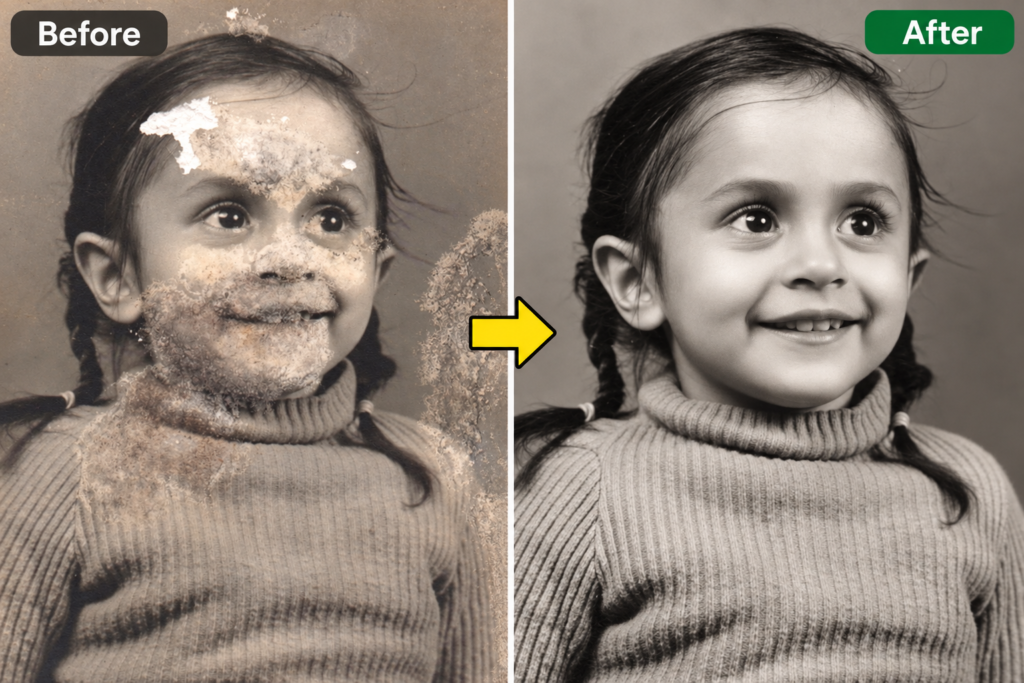
Step 9: Compare Before and After
Compare the restored photograph with the original before deciding that the restoration is finished. For example, place the original damaged image beside the restored version and check the face, hair, clothing, background, colors, and fine textures.
A good restoration improves readability without making the photograph look unnaturally artificial.
Can AI Restore Faces in Old Photographs?
AI can enhance and reconstruct facial details in some old photographs, but reconstructed facial features should not automatically be treated as historically accurate. For example, an AI tool may make a blurry face appear clearer by generating plausible details around the eyes, nose, mouth, and skin.
Therefore, facial restoration requires careful comparison with the original. If the source image does not contain enough information, no AI system can guarantee that every reconstructed facial feature matches the person’s actual appearance.
For important family or historical photographs, keep the untouched original alongside the AI-restored version.
Can You Restore Faded or Discolored Photos With AI?
AI can improve faded and discolored photographs by adjusting color, contrast, and tonal balance. For example, a photograph that has developed a strong yellow tint can receive color correction that produces more balanced-looking skin tones and backgrounds.
At the same time, color restoration is partly interpretive when the original colors are unknown. This is particularly important when colorizing black-and-white photographs because the AI must estimate colors rather than recover colors that are actually stored in the source image.
What Is the Difference Between Photo Restoration and Photo Enhancement?
Photo restoration focuses on repairing damage, while photo enhancement focuses on improving image quality or appearance. For example, removing a scratch is restoration, while increasing sharpness in an undamaged image is enhancement.
| Feature | Photo Restoration | Photo Enhancement |
|---|---|---|
| Main goal | Repair damaged photographs | Improve image quality |
| Scratches | Often addressed | Usually not the main focus |
| Faded colors | Common restoration task | May also be improved |
| Sharpness | Often improved | Core enhancement task |
| Missing details | May require reconstruction | Usually limited |
| Historical accuracy | Requires careful review | Usually less critical |
| Typical use | Old and damaged photos | Low-quality or ordinary images |
Moreover, the two processes often work together. An old photograph may first need restoration and then additional enhancement to produce a clean final image.
What Are the Benefits of AI Photo Restoration?
AI photo restoration reduces the amount of manual editing required to repair common photographic problems. For example, a beginner who does not know advanced Photoshop techniques can use an AI-assisted workflow to process scratches, fading, and image quality issues.
The main benefits include:
- Speed: Automated processing can reduce repetitive editing work.
- Accessibility: Beginners can restore images without advanced editing knowledge.
- Automation: AI can identify and process common visual defects.
- Detail enhancement: Soft or low-quality photographs may become easier to view.
- Workflow efficiency: Several restoration tasks can be combined into one process.
- Experimentation: You can compare different outputs without changing the original.
Adobe’s current AI restoration workflows similarly use machine learning for tasks such as photo restoration, colorization, noise reduction, and enhancement.
What Are the Best Uses for Restored Photos?
Restored photos are useful for preserving memories, creating family archives, documenting history, and producing better digital copies. For example, a restored wedding photograph can become part of a digital family album while the physical original remains safely stored.
Common applications include:
- Family albums — Restore old photographs before digitizing an entire collection.
- Wedding photographs — Repair faded colors and scratches in older wedding images.
- Childhood pictures — Improve blurry or damaged childhood photographs.
- Memorial photographs — Preserve meaningful portraits for family members.
- Historical archives — Digitize and enhance visual records while retaining originals.
- Genealogy projects — Improve photographs used to document family history.
- Social media posts — Prepare vintage photographs for modern digital displays.
- Digital scrapbooks — Combine restored images with family stories and dates.
If you’re preparing for a job search or updating your LinkedIn profile, check out our guide on How to Get a Professional Headshot (AI or Camera) for tips on choosing the right option for your needs.
What Should You Check After Restoring an Old Photo?
You should check facial features, colors, textures, sharpness, and damaged areas before saving a restored photograph. For example, zoom into the eyes and hair to make sure the AI has not introduced strange lines, excessive smoothing, or unnatural details.
First, compare the restored image against the original. Second, inspect important areas at high magnification. Third, reduce the restoration strength or try another version if the result looks artificial.
Use this checklist:
- Is the face still recognizable?
- Do skin textures look natural?
- Are colors believable?
- Are scratches actually removed?
- Has sharpening created halos?
- Are clothing patterns still accurate?
- Has AI changed important objects?
- Does the photograph still resemble the original?
Always preserve an untouched copy of the original photograph before applying restoration. Adobe also recommends non-destructive workflows that keep the source image intact when applying AI-based image filters.
What Are the Limitations of AI Photo Restoration?
AI photo restoration cannot guarantee an exact recovery of information that has been completely destroyed or never captured. For example, if an entire section of a photograph has been torn away, the AI may create a visually plausible replacement rather than recover the missing original.
Similarly, heavily blurred faces can be enhanced but not necessarily restored with historical accuracy. Colorized black-and-white photographs also contain estimated colors unless reliable color references exist.
Therefore, AI restoration should be treated as enhancement and reconstruction rather than guaranteed historical recovery.
How Can You Preserve Restored Photos for the Future?
The best way to preserve restored photographs is to keep the original, save a high-quality digital master, and maintain multiple backups. For example, you can retain the original scan separately from the edited JPG and store backup copies on an external drive and reliable online storage.
The Library of Congress recommends keeping multiple copies of digital photographs on different storage media and checking them periodically to ensure continued access.
What Resolution Should You Use When Scanning Old Photos?
A high-quality scan gives an AI restoration tool more source information to work with. For example, National Archives guidance has specified 300 ppi for an 8 × 10-inch photograph to create a 2,400 × 3,000-pixel file, while a 4 × 5-inch photograph at 600 ppi can produce the same 2,400 × 3,000-pixel dimensions.
FADGI’s 2023 technical guidelines provide updated digitization guidance for cultural heritage materials, including photographic prints and negatives.
As a practical rule, scan at a suitable optical resolution rather than relying on artificial enlargement of a poor scan.
How Should You Name and Back Up Restored Photos?
Descriptive filenames make restored photographs easier to identify and preserve. For example, instead of IMG_0042.jpg, use 1988_Family_Wedding_Original.jpg and 1988_Family_Wedding_Restored.jpg.
Keep at least these versions when possible:
- Original physical photograph
- Original digital scan
- Restored master
- Sharing or social-media copy
- Backup copy
“Digital preservation experts recommend keeping at least two copies of important photographs, stored in different locations or on different media, to guard against loss.”
What’s Next: How Can You Give Old Photos a New Digital Life?
The next step is to start with one important photograph, create a high-quality digital copy, and restore it carefully before processing an entire collection. For example, choose a moderately damaged family photograph and use it as a test image before restoring dozens of photographs.
First, preserve the original. Second, create the best scan available. Third, process the copy using an AI restoration workflow such as Photo AI Studio. Fourth, compare the result against the original and save both versions.
Frequently Asked Questions (FAQs)
Q1: What is photo restoration?
A: Photo restoration is the process of repairing and enhancing old, faded, scratched, damaged, or degraded photographs.
Q2: Can AI restore old photos?
A: Yes, AI photo restoration can improve scratches, fading, blur, noise, colors, and other common image problems.
Q3: Can AI remove scratches from photos?
A: Yes, AI can detect and remove many scratches, dust marks, stains, and surface imperfections from old photographs.
Q4: Can AI restore damaged faces?
A: AI can enhance or reconstruct some facial details, but reconstructed features may not exactly match the person’s original appearance.
Q5: Is photo restoration the same as photo enhancement?
A: No. Photo restoration repairs damage, while photo enhancement primarily improves image quality, sharpness, color, or clarity.
Conclusion: Give Old Photos a New Digital Life
Photo restoration is the process of repairing, enhancing, and preserving photographs affected by age, scratches, fading, discoloration, blur, noise, and other forms of degradation. AI makes many restoration tasks faster and more accessible, but the result should always be reviewed against the original.
Moreover, AI photo restoration can improve an old photograph without guaranteeing that every reconstructed detail is historically accurate. That is why the original photograph and original digital scan should remain safely preserved.
Finally, if you have an old childhood picture, wedding photograph, family portrait, or historical image that needs attention, start with a high-quality copy and test the restoration carefully. With the right workflow, a damaged photograph can gain a useful new digital life while its original story remains preserved.
Written by: Muthumanickam — SEO, Blogging, Affiliate Marketing & Content Creation specialist with 5+ years of experience across digital platforms.