You’ve probably already used online editing tools to remove image backgrounds, but getting clean edges around hair, products, and complex subjects can still be challenging. In this guide, you’ll learn what an AI background remover is, how it works, and how to remove image backgrounds step by step using Photo AI Studio.
Key Takeaways
- AI background removers use automated image analysis to separate subjects from their original backgrounds.
- Transparent PNG images allow isolated subjects to be placed into thumbnails, product listings, and promotional designs.
- AI background removal involves uploading an image, identifying the subject, separating the background, and reviewing the result.
- Photo AI Studio can be explored as an AI photo editing solution, but its current background removal workflow should be verified in the platform interface.
- Image quality and subject complexity influence background removal results, especially around hair, shadows, and fine edges.
- Background removal supports e-commerce photography, blogging, social media design, and affiliate marketing.
- Edge review and refinement help identify unwanted background remnants before an image is published.
What Is an AI Background Remover and How Does It Work?
An AI background remover is a tool that uses artificial intelligence to identify the main subject in an image and separate it from the surrounding background. The process helps users isolate people, products, animals, and other objects without manually selecting every part of the image.
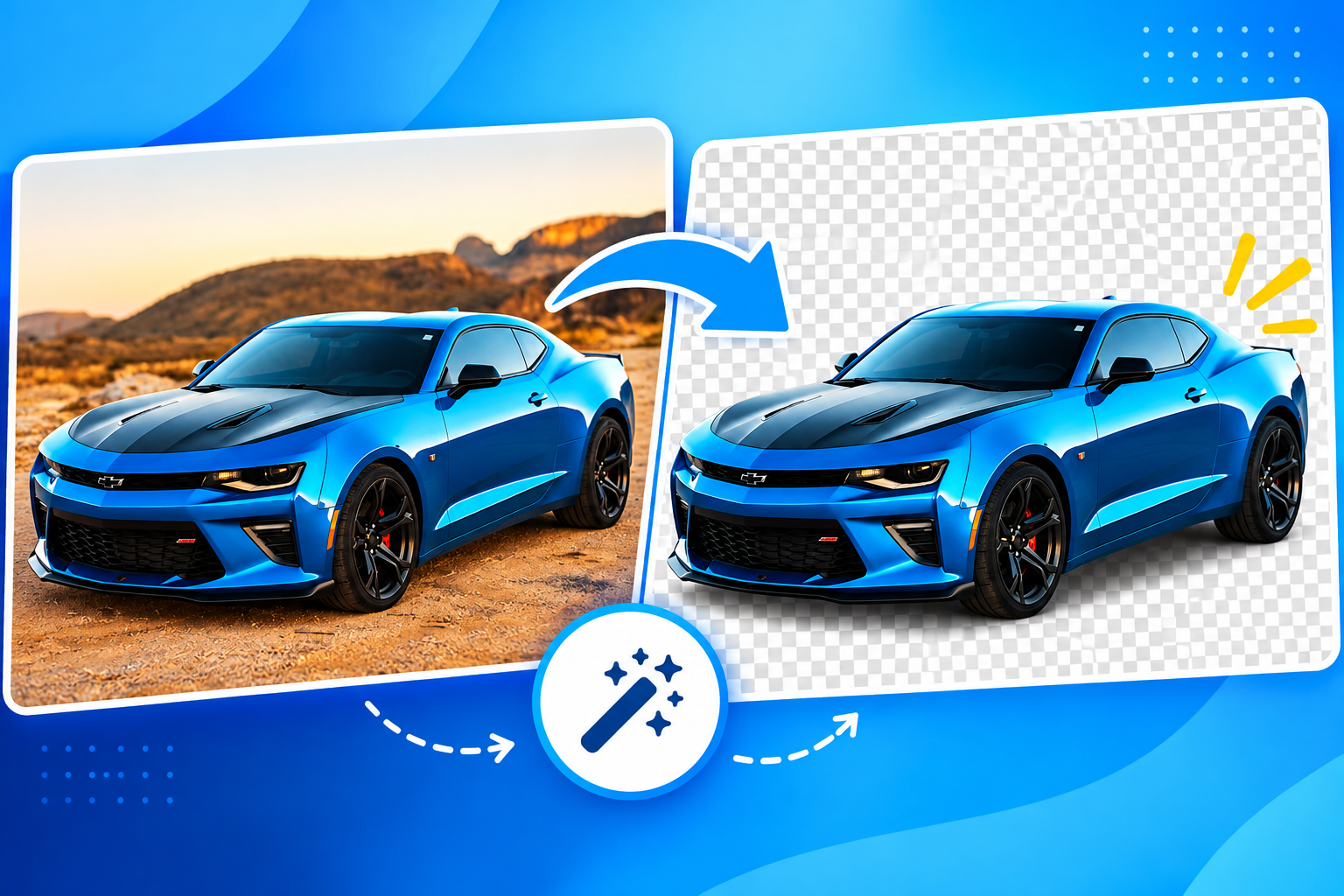
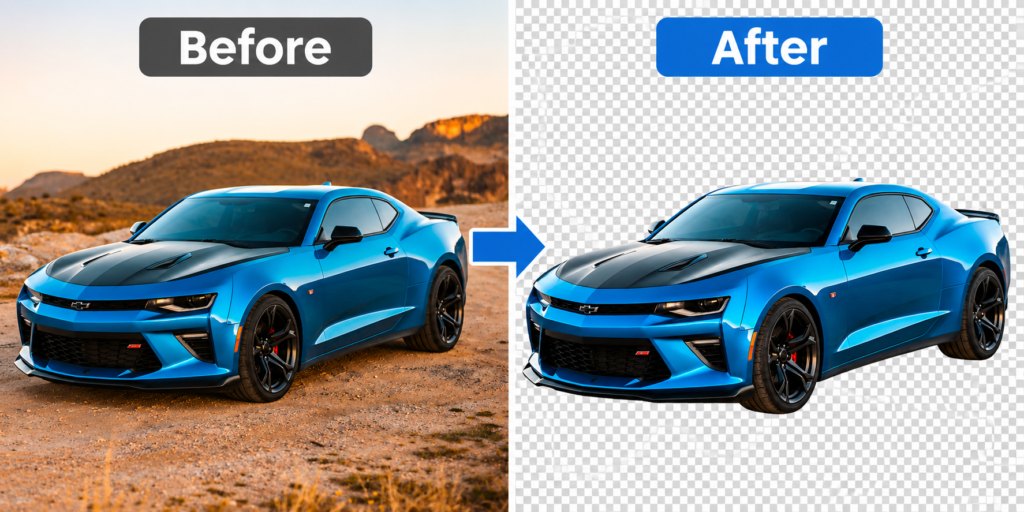
For example, an AI background remover can separate a blue sports car from a desert landscape, leaving the car isolated for a product advertisement or creative design.
Unlike traditional manual editing, AI-assisted background removal can automate much of the subject selection process. However, the result still depends on image quality, subject boundaries, and the tool’s ability to distinguish foreground details from the background.
What Is a Transparent PNG Image?
A transparent PNG image is an image file that can store transparent areas through an alpha channel. After removing a background, users can place the isolated subject over a different color, photograph, or design.
For example, a blogger can remove the background from a product photo and place the product on a branded blog banner without showing the original environment.
AI Background Removal vs. Manual Editing
AI background removal automates subject detection, while manual editing relies on user-controlled selections, masks, and brushes.
| Feature | AI Background Removal | Manual Editing |
|---|---|---|
| Subject selection | Automated | User-controlled |
| Editing experience | Beginner-friendly | Requires practice |
| Fine-edge control | Depends on available tools | Often highly adjustable |
| Repetitive tasks | Can reduce manual effort | May require repeated selection |
| Final review | Still necessary | Usually performed throughout editing |
AI background removal simplifies the initial selection process, but manual refinement can remain useful for complex images.
41–48% of retailers now use generative AI for image editing tasks. Cloudinary’s 2025 survey of 448 retailers found that 41–48% use generative AI for tasks like background removal, captioning, and smart cropping.
Source: Cloudinary, 2025 State of Retail Survey
Why Is AI Background Removal Important for Content Creation?
AI background removal is important because it helps users isolate subjects for cleaner visuals, flexible designs, and more efficient image editing workflows. The technique is useful for online sellers, bloggers, marketers, photographers, and social media creators.
For example, an online seller can remove a distracting room background from a product photo and use the isolated product in a catalog or promotional graphic.
1. Create Professional Product Images
Product background removal helps sellers focus attention on the item being promoted. A clean cutout can be used in product listings, catalogs, advertisements, and comparison graphics.
For example, an affiliate marketer reviewing a haircare product can isolate the shampoo bottle and place it on a custom blog thumbnail.
2. Improve Social Media and Thumbnail Designs
Background removal makes it easier to position people and objects inside social media graphics. Creators can combine isolated subjects with text, gradients, new images, and branded layouts.
For example, a YouTube creator can remove the background from a portrait and place the subject beside a product or headline in a thumbnail.
3. Reduce Repetitive Editing Work
Automated background removal can reduce the amount of manual selection required for suitable images. This is particularly useful when a creator needs to prepare multiple visuals for recurring content.
For example, a blogger preparing several product review images may use automatic cutouts as an initial editing step before checking each result.
How Does AI Background Removal Work?
AI background removal involves analyzing an image, detecting the foreground subject, separating it from the background, and generating a transparent or replacement-background image. The process combines image analysis and subject segmentation to estimate which pixels belong to the main object.
For example, when you upload a photograph of a car, the AI attempts to distinguish the car’s body, windows, wheels, and other relevant details from the sky, road, and surrounding scenery.
Step 1: Upload the Image
The background removal process begins when you upload an image to an AI editing tool. The image provides the visual information required for the system to identify the subject.
A clear, well-lit product photograph generally provides more useful visual boundaries than a small, blurry image with heavy compression.
Step 2: Detect the Main Subject
Subject detection identifies the person, product, or object that should remain in the image. The AI analyzes visual features such as shapes, colors, textures, and boundaries.
For example, a car against a contrasting landscape may be easier to isolate than a dark object photographed against a similarly dark background.
Step 3: Separate the Foreground
Image segmentation separates foreground areas from surrounding background pixels. The system generates an estimated subject mask, which determines which parts of the image remain visible.
The accuracy of this separation can vary, especially when hair, fur, transparent glass, or similar-colored surfaces blend into the background.
Step 4: Generate Transparency
A transparent background uses an alpha channel to indicate which parts of the image are visible or transparent. A PNG file can preserve this transparency when the export workflow supports it.
For example, a logo or isolated product can be placed on a colored design without displaying a rectangular background.
Step 5: Review and Export
Reviewing the generated cutout helps identify unwanted background remnants, missing details, and rough edges. Users should inspect the result before downloading or publishing it.
How Do You Remove an Image Background Using Photo AI Studio?
Photo AI Studio is an AI photo creation and editing platform that provides creative image workflows and editing capabilities. Its current public website highlights photo generation, professional headshots, product shots, and background-related editing features. The exact availability of a dedicated Background Remover tool, including its current upload and export controls, should be confirmed in the live interface. Source: Photo AI Studio, accessed September 2026
The following workflow follows the supplied Photo AI Studio demonstration instructions. Verify the button names and available options before publishing screenshots, because platform interfaces can change.
Photo AI Studio

Step 1: Open Photo AI Studio
Start by opening Google and searching for Photo AI Studio. Select the official Photo AI Studio website and open the platform in your browser.

The platform’s public website describes features including image creation, professional photoshoots, product shots, and editing utilities. The navigation and tool names may vary depending on the current version of the website.
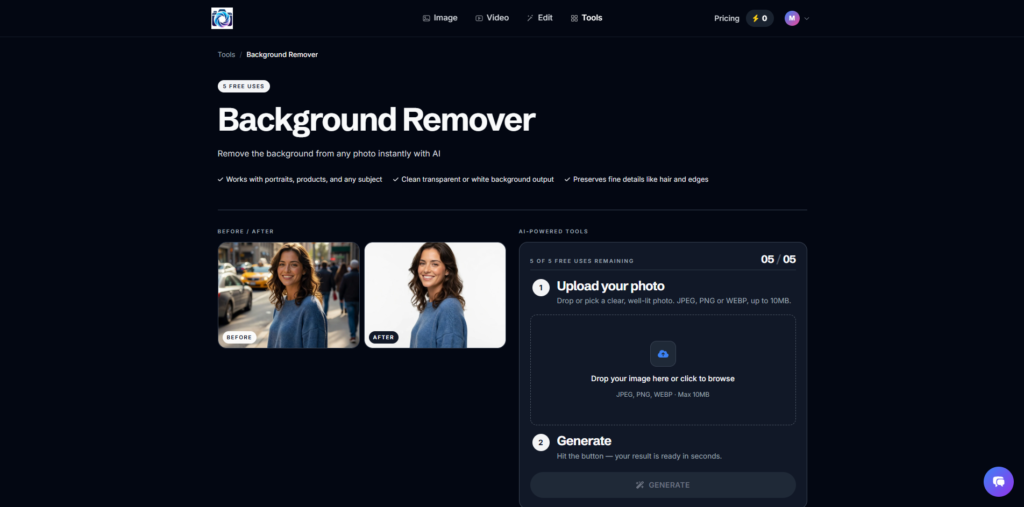
Step 2: Open the Background Removal Tool
Select the background removal feature if it is available in your Photo AI Studio workspace. The supplied demonstration instructs users to open Tools and choose Background Remover.

According to the supplied workflow, the interface includes a demonstration area and an image upload section. Confirm these elements in the live platform before adding screenshots to the article.
Step 3: Upload Your Photo
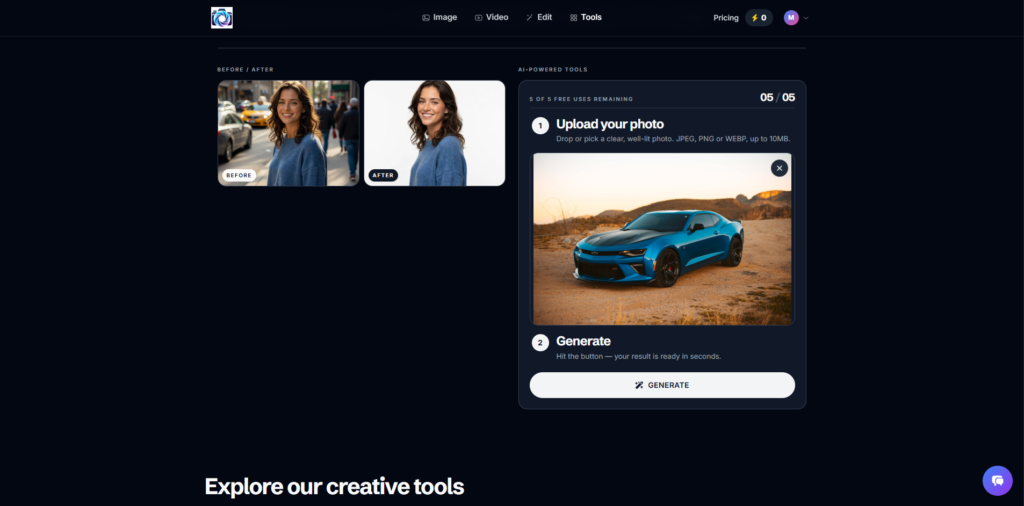
Upload a clear image containing the subject you want to isolate. For this demonstration, use a high-quality photograph of a blue sports car against a desert landscape.
The car is the main subject, while the mountains, sky, and ground form the surrounding background. This example helps demonstrate how an AI tool attempts to distinguish an object from a detailed environment.
Step 4: Start the Background Removal Process
Select the available Generate or processing control to begin background removal, if the live interface provides that option. The supplied tutorial uses a Generate button as the next step after uploading the image.
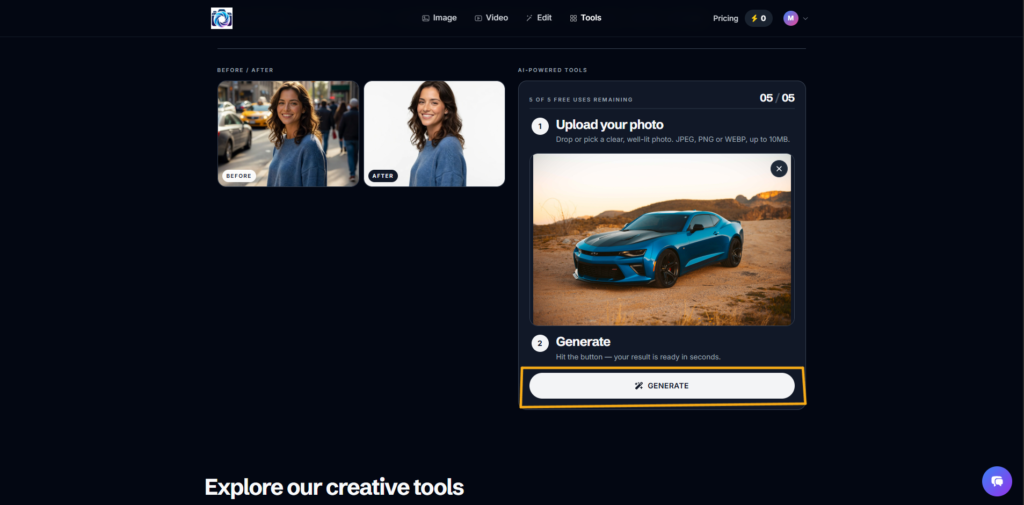
The platform may process the image automatically, depending on the selected feature and current workflow. Avoid assuming a specific processing duration or result quality before testing the tool.
Step 5: Review the Result
Inspect the generated cutout to check whether the car has been separated from the desert landscape. Look closely at the wheels, windows, roofline, and other edges for unwanted background remnants.
For example, a small area of desert near a wheel or a rough edge around a vehicle mirror may require additional editing if refinement tools are available.
Step 6: Save or Export the Image
Save the background-removed image using the export options provided by the platform. If the workflow supports transparent PNG export, choose that format when you need to place the isolated subject over another design.
Check the downloaded file before using it in your blog, thumbnail, or promotional material. Do not assume that every export option preserves transparency.
What Types of Images Can You Edit with an AI Background Remover?
AI background removers can be used with product photos, portraits, clothing, food, and many other image categories. The quality of the result depends on how clearly the subject is separated from its environment.
Product Images
Product image background removal isolates items for e-commerce listings, catalogs, and promotional designs. For example, a seller can remove the background from a cosmetic bottle and place it on a clean branded layout.
Products with clear outlines and good lighting can be easier to process than reflective or transparent objects.
89% lower photo-editing costs for jewelry sellers using automated tools. Photoroom reports that jewelry businesses using its automated editing platform saw an 89% reduction in editing costs, alongside a 34% increase in sell-through rate and a 21% lift in average selling price.
Source: Photoroom, Jewelry industry case data
AI virtual clothes try-on allows users to visualize how different outfits may look in a photo. Learn more in our guide on How Does Virtual Clothes Try-On Work? A Step-by-Step Guide to discover how AI helps create realistic clothing previews.
Portraits and People
Portrait background removal separates people from their original surroundings for profile images, posters, and thumbnails. For example, a creator can isolate a portrait photographed outdoors and use it in a social media cover.
Hair strands, loose clothing, and overlapping objects may require closer inspection after automatic processing.
A professional headshot helps create a strong first impression for LinkedIn profiles, resumes, and business branding. Learn more in our guide on How to Get a Professional Headshot (AI or Camera) to discover how AI and cameras can help you create high-quality professional portraits.
Clothing, Food, and Other Objects
Background removal supports visual editing for garments, accessories, food, and everyday objects. For example, an online store can isolate shoes for a product collage, while a food blogger can separate a dish from a busy kitchen scene.
Some image types are more challenging than others:
- Hair and fur can contain fine edges that blend into the background.
- Glass objects may be difficult to distinguish from surrounding scenery.
- Shadows and reflections can be incorrectly removed or preserved.
- Low-contrast subjects may blend with similarly colored backgrounds.
- Busy backgrounds can make subject boundaries harder to identify.
59% of sellers say bad product photos have cost them sales. In a 2026 survey of 1,356 paying Photoroom users (e-commerce sellers), 59% reported losing sales due to poor product photos, and a median of 15 minutes was spent editing each image before automation.
Source: Photoroom, “The Hidden Cost of Product Photography for SMBs,” 2026
What Are the Benefits and Limitations of AI Background Removers?
AI background removers offer automated subject separation and simpler editing workflows, but they do not guarantee perfect results for every image. Users should balance convenience with careful quality checking.
| Benefits | Limitations |
|---|---|
| Automated subject detection | Complex edges may need refinement |
| Beginner-friendly workflows | Similar colors can confuse separation |
| Useful for repeated editing | Shadows may be handled inconsistently |
| Supports creative designs | Results depend on image quality |
| Can support transparent exports | Export features vary by platform |
What Are the Common Problems with AI Background Removal?
Common background removal problems include rough edges, missing subject details, and unwanted background remnants. These issues can appear when the subject has fine textures or blends into the surrounding environment.
For example, a portrait with dark hair against a dark wall may produce an imperfect edge around the hairline.
To reduce problems, start with clear images and inspect the result at a larger viewing size. When available, use editing tools to refine areas that the automatic process did not handle correctly.
How Can You Use Transparent Images for Blogging, E-Commerce, and Social Media?
Transparent images allow creators and businesses to reuse isolated subjects across different visual designs. A single cutout can support several content formats without requiring the original background.
| Use Case | Practical Application |
|---|---|
| E-commerce | Create clean product images |
| Blogging | Design featured images and article graphics |
| YouTube | Prepare thumbnail subjects |
| Build promotional posts and reel covers | |
| Affiliate marketing | Create product-focused visuals |
| Branding | Build reusable transparent assets |
Background presence and eye-tracking fixation significantly affect willingness to pay. A 2026 study combining eye-tracking data with a survey of 122 consumers found that background presence, initial fixation, and fixation duration each significantly influenced willingness to pay — with high-involvement products benefiting more from contextual backgrounds than low-involvement ones.
Source: Chaudhuri, Gupta & Lim, Journal of Retailing and Consumer Services, 2026
Example 1: Product Image Before and After
A product cutout can help an online seller move from a distracting photo to a reusable visual asset. For example, a haircare bottle photographed in a bedroom can be isolated and placed on a branded background.
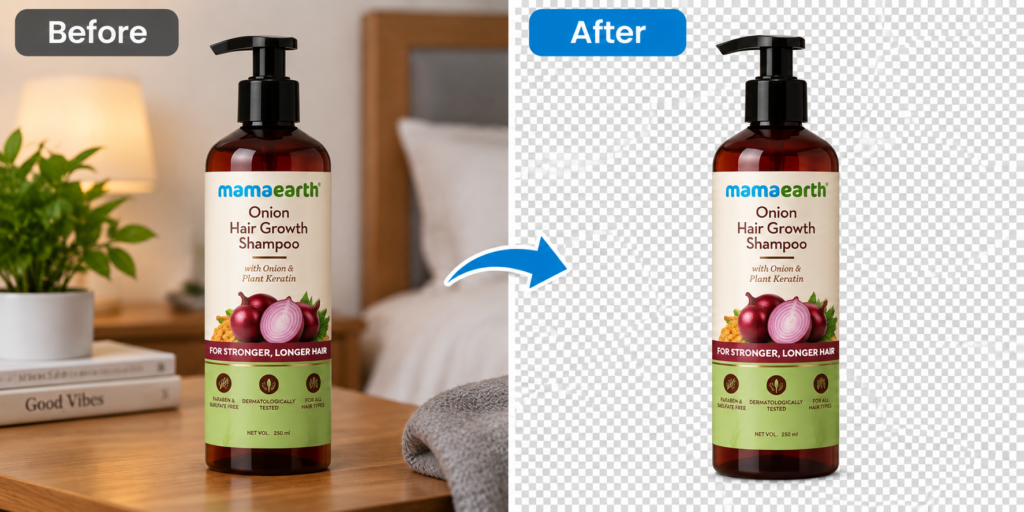
76% of product images use a pure white background. After analyzing seven million product images, Pixelz found that 76% had their original background replaced with pure white, and another 16% were made transparent — reinforcing white/transparent as the e-commerce default.
Source: Pixelz Product Image Report (via BigCommerce)
Example 2: Portrait for a YouTube Thumbnail
A portrait cutout can help a creator position a person beside text or another image. For example, a finance blogger can isolate a portrait and combine it with a stock market graphic in a YouTube thumbnail.
Example 3: Blog and Affiliate Marketing Graphics
Background removal helps bloggers prepare product-focused graphics for reviews and promotional content. For example, an affiliate article about AI image tools can include isolated screenshots, product illustrations, or other relevant visual assets.
Always check the licensing and usage rights for images, logos, and product assets before publishing commercial content.
What Is the Difference Between Background Removal and Background Replacement?
Background removal isolates the original subject, while background replacement places that subject over a different visual environment. The two techniques can be used together when a design requires a new scene.
For example, a creator can remove the background from a portrait and then place the person in a professional studio-style design.
Photo AI Studio’s public website includes background-related editing capabilities, including a Background Changer, but the availability of a particular transparent cutout and replacement workflow should be confirmed in the current product interface. Source: Photo AI Studio, accessed September 2026
AI image generation allows you to create unique visuals using text prompts or reference images. Explore our guide on How to Generate AI Photos Using Text or Reference Images: A Step-by-Step Tutorial to learn how to create customized images with AI.
How Can You Improve the Quality of AI Background Removal Results?
Background removal quality improves when users select suitable images, inspect subject boundaries, and refine the final result when necessary. A good starting image can make the editing process easier.
Practical Recommendations
- Choose a clear, high-resolution image. Use a photograph where the subject is visible and well defined.
- Select images with good contrast. A visible difference between the subject and background can help separation.
- Review the edges. Check hair, fur, wheels, fingers, and other fine details.
- Inspect shadows and reflections. Decide whether the design requires natural shadows or a fully isolated object.
- Export the appropriate format. Use a transparency-supporting format when you need an isolated subject.
- Test different image types. Start with simple product or portrait photos before attempting complex scenes.
Image upscaling helps improve image resolution and enhance visual details for better-quality designs. Explore our guide on How to Upscale Image Without Losing Quality? to learn how AI image upscaling can help you create sharper visuals for blogs, social media, and marketing content.
The best way to learn AI background removal is to start with a simple subject and gradually test more complex images. This approach helps you understand how image quality, contrast, and fine details affect the result.
Frequently Asked Questions (FAQs)
Q1: What Is an AI Background Remover?
A: An AI background remover is a tool that uses artificial intelligence to automatically separate the main subject from an image’s background. It helps users create clean cutouts without manually selecting every part of the image.
Q2: How Does AI Background Removal Work?
A: AI background removal analyzes an image, detects the main subject, separates the foreground from the background, and generates a transparent or edited result. The quality depends on image resolution, contrast, and subject complexity.
Q3: Can I Remove a Background from a Portrait Using AI?
A: Yes, AI background removers can isolate people from portraits for profile images, posters, thumbnails, and social media designs. Fine hair, loose clothing, and low-contrast backgrounds may require additional refinement.
Q4: Can AI Background Removers Create Transparent PNG Images?
A: Yes, a background removal tool can create a transparent PNG when its export workflow supports transparency. PNG files can preserve transparent areas, allowing isolated subjects to be placed into new designs.
Conclusion: Create Cleaner Images with AI Background Removal
AI background removal helps users isolate subjects from original images and prepare reusable visuals for content creation, marketing, and design. The process typically involves uploading an image, detecting the main subject, removing the background, reviewing the cutout, and exporting the result.
Photo AI Studio can be explored as part of an AI photo editing workflow, but its current background removal interface and export options should be verified before publishing a platform-specific tutorial. Starting with clear images and reviewing the final edges can help you develop practical editing skills.
Whether you’re a blogger, affiliate marketer, online seller, or social media creator, experimenting with background removal can help you create more flexible visual content.
Have you tried using an AI background remover to create transparent images for your blog, social media, or online business?
Written by
Muthumanickam — SEO, Blogging, Affiliate Marketing, and Content Creation Specialist with 5+ years of experience across different platforms.