You’ve probably already seen AI-generated portraits, anime photos, and cinematic visuals across social media, but choosing the right tool and artistic style can be challenging. In this comprehensive guide, you’ll learn what Style Snap is, how to use Photo AI Studio, which artistic styles are available, and how to create better AI-styled photos.
AI image generation platforms collectively produce more than 34 million images per day, translating to roughly 394 images per second around the clock.
Key Takeaways
- Style Snap is an AI photo styling tool that creates artistic variations of uploaded images.
- Photo AI Studio Style Snap lists six artistic styles: cinematic, anime, vintage 70s, pop art, watercolor, and Pixar 3D.
- The editing workflow involves uploading an image, selecting a style, generating a variation, and reviewing the result.
- Photo selection affects how effectively AI preserves important visual details.
- Creative applications include social media posts, blog illustrations, marketing concepts, and artistic experiments.
- AI-generated results may change facial details, colors, or other elements, so review is essential.
- Responsible editing includes checking privacy, usage rights, and the suitability of images for commercial purposes.
What Is Style Snap in Photo AI Studio?
Style Snap is an AI-powered photo styling tool that transforms an uploaded image into an artistic variation based on a selected visual style. Photo AI Studio’s official Style Snap page describes six artistic options and a workflow for uploading an image and generating a transformed result.
Photo AI Studio
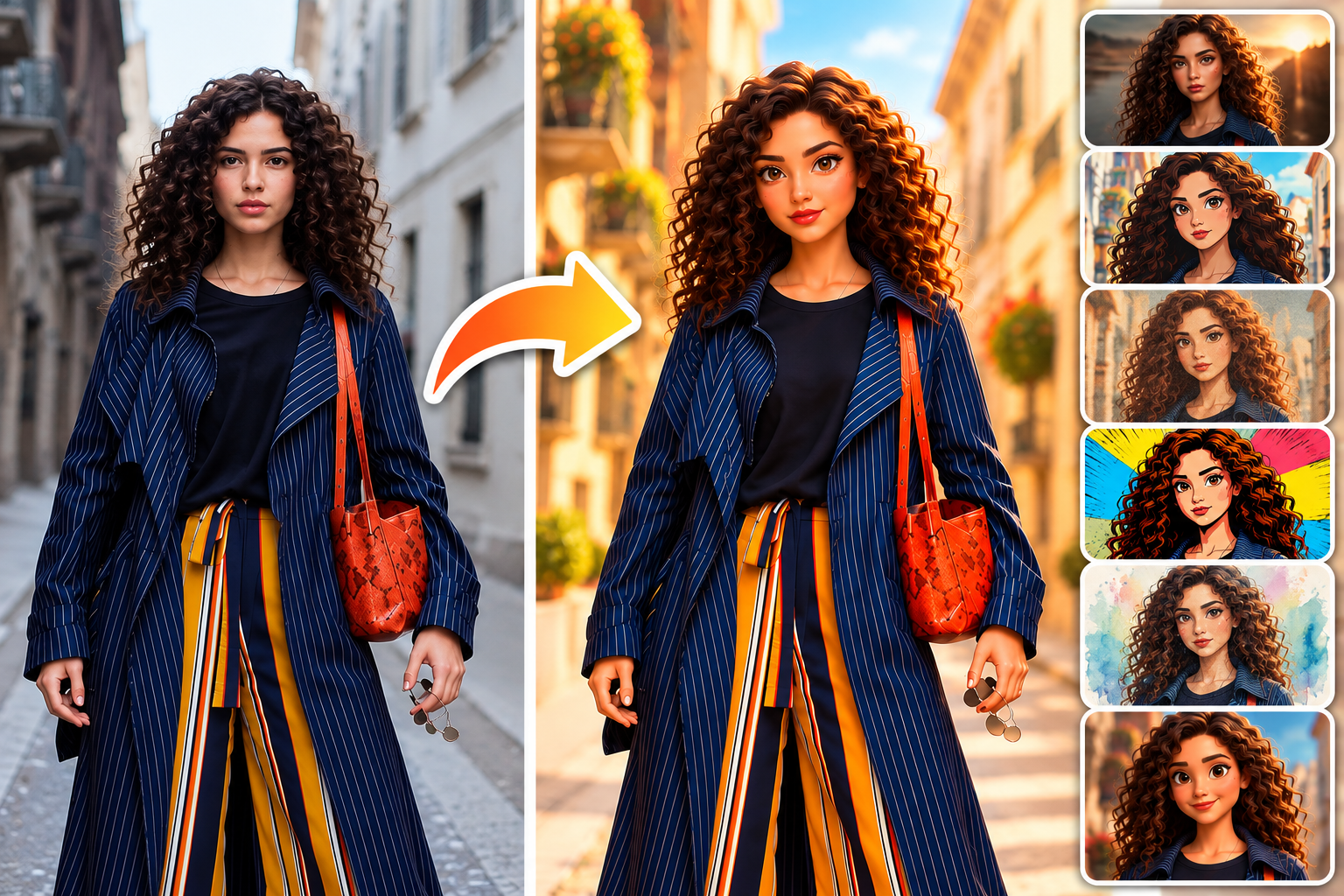
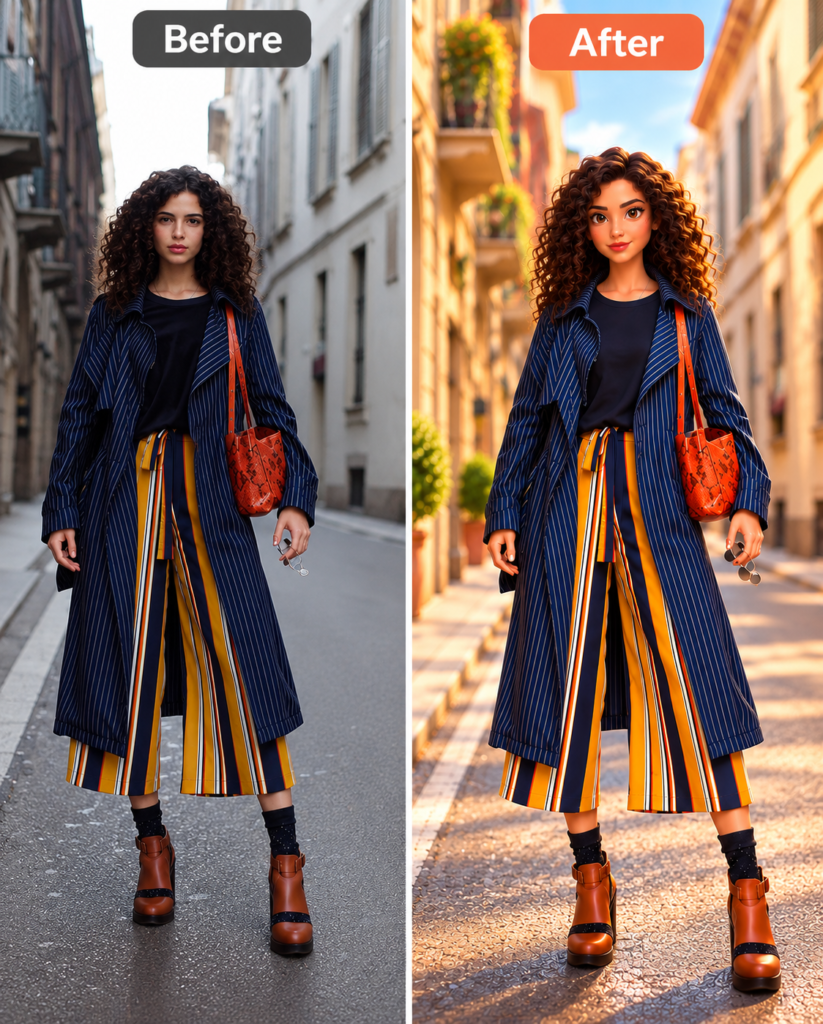
Unlike a traditional image editor, Style Snap focuses on applying a chosen artistic direction to an existing photo. For example, you can upload a portrait and experiment with a cinematic appearance, anime-inspired design, or watercolor effect.
Moreover, photo styling and complete image generation are different processes. Photo styling begins with an existing image and attempts to transform its appearance, while text-to-image generation generally creates a new image from a written description.
How Does Style Snap Transform Photos Using AI?
AI photo styling transforms visual characteristics such as color, atmosphere, illustration treatment, and artistic appearance. The exact changes depend on the selected style, the source image, and the AI model’s processing.
For example, a portrait with natural lighting may receive a more dramatic cinematic treatment, while another photo may be converted into a painted or illustrated appearance. The subject may remain recognizable, but AI transformations are not guaranteed to preserve every detail.
This volume has accumulated to more than 15 billion AI-generated images since 2022 — a milestone traditional photography took 149 years to reach.
The official Style Snap page presents the tool as a way to generate instant style variations, making it suitable for users who want to experiment with creative photo editing.
Why Does Style Snap Matter for AI Photo Editing?
Style Snap matters because it gives users a practical way to explore different artistic directions from an existing photo. Instead of manually recreating every visual effect, users can test predefined styles and compare the resulting variations.
For example, a blogger creating a feature image could experiment with a cinematic portrait, while an Instagram creator might test an anime-inspired version of a personal photo. The usefulness of each output depends on whether the chosen style supports the intended creative purpose.
A 2025 Adobe creator survey found that 86% of creators now actively use creative generative AI across their workflows.
Creative Experimentation Without Complex Editing
AI photo styling simplifies artistic experimentation by allowing users to explore visual variations without relying entirely on manual editing techniques. Beginners can use predefined styles as starting points for understanding how artistic treatments change a photo.
For example, a single portrait can be tested in cinematic, watercolor, and pop art styles to explore different creative directions. This approach helps users compare visual concepts before deciding which result to develop further.
Benefits for Bloggers and Content Creators
Style Snap can support creative content workflows by producing artistic image variations for selected publishing contexts. Bloggers may use suitable visuals for article illustrations, while social media creators can explore different image treatments for posts and campaigns.
However, an AI-generated image should be reviewed before publication, especially when facial identity, product details, branding, or factual visual representation matters.
Adobe and industry data show 87% of marketers use generative AI in 2026, and 76% of graphic designers use AI image tools.
How Do You Use Style Snap in Photo AI Studio?
Using Style Snap involves uploading a photo, selecting an artistic style, generating a variation, and reviewing the resulting image. The following workflow is based on the supplied demonstration steps and the Style Snap tool description; interface labels and available options should be rechecked before publication.
Photo AI Studio
Step 1: Open Photo AI Studio
Photo AI Studio provides an online platform with AI-powered photo and image tools. To begin, open Google and search for Photo AI Studio, then locate the official website.
For example, search for the brand name and verify that the result leads to the official Photo AI Studio domain rather than an unrelated website.
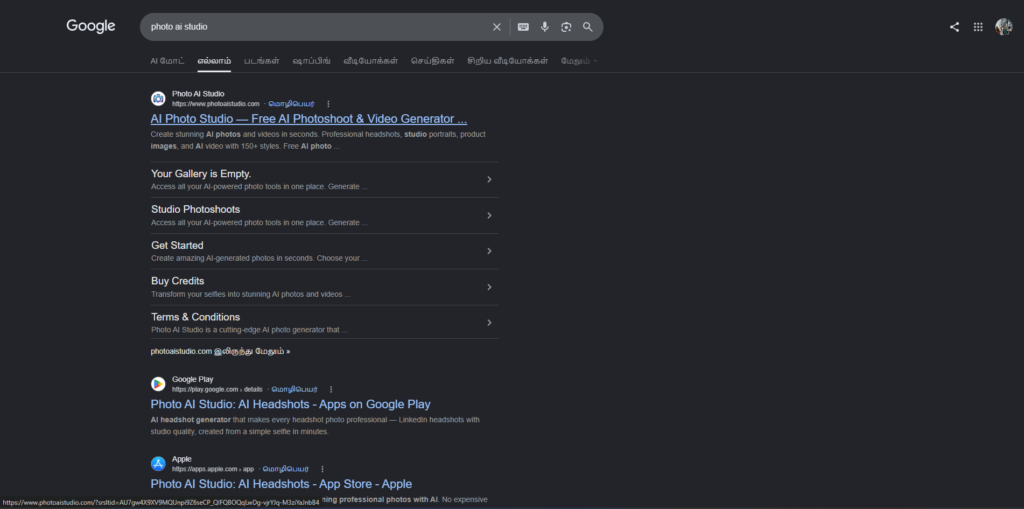
Next, open the official website to access its available tools. The exact homepage layout may change as the platform introduces updates.
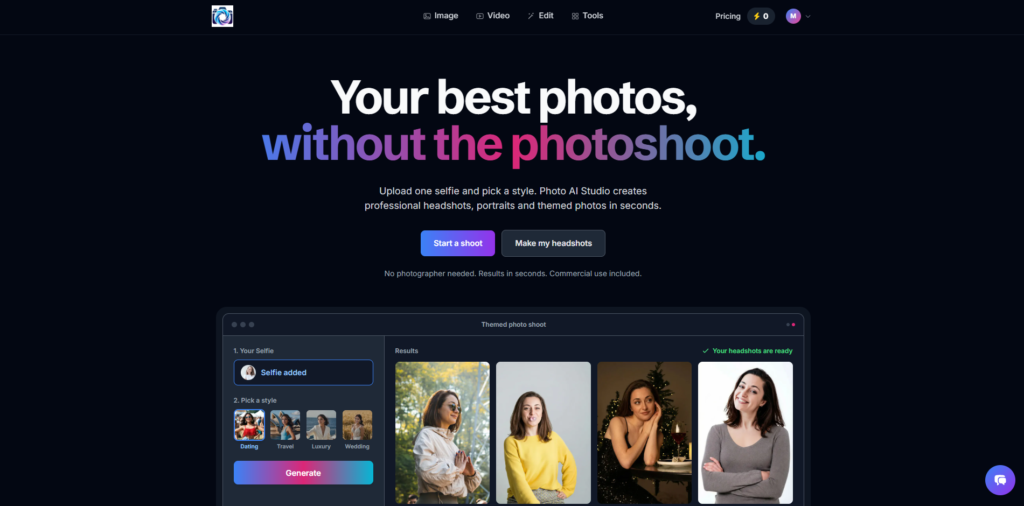
Step 2: Select AI Style Snap
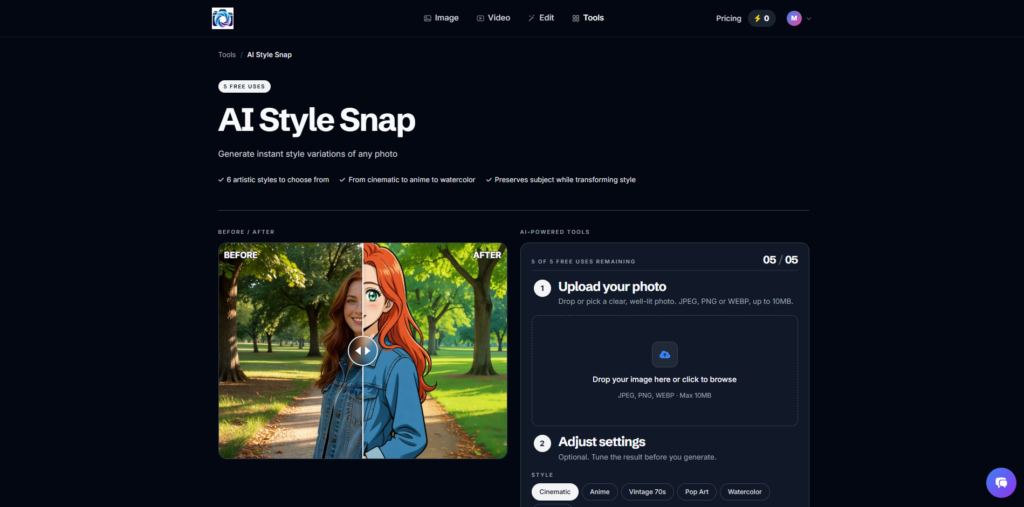
AI Style Snap is the Style Snap tool listed within Photo AI Studio’s AI tool collection. After opening the website, navigate to the tools area and select AI Style Snap if the option is available.
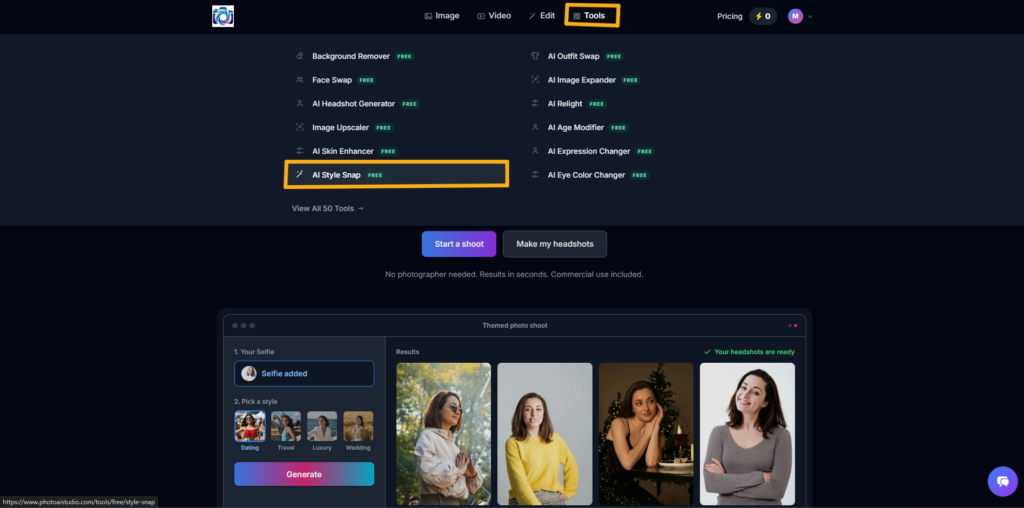
For example, the Style Snap page includes a before-and-after demonstration that shows how an original image can receive a different artistic treatment.
Step 3: Upload Your Photo
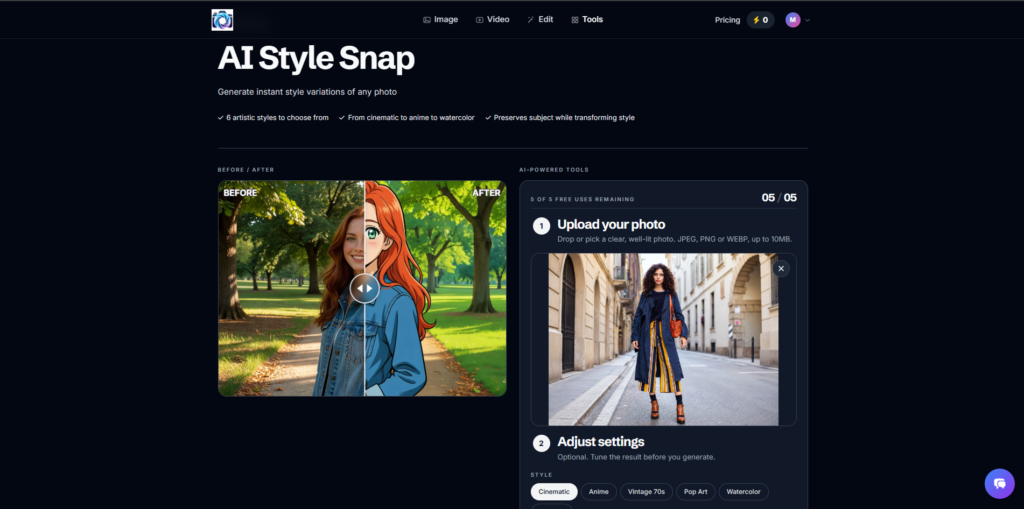
Uploading a source image is the first essential step in the Style Snap workflow. The supplied interface instructions describe support for JPEG, PNG, and WEBP formats and a maximum upload size of 10 MB; verify these specifications on the live interface before publishing.
For example, use a clear portrait photo with sufficient lighting and a visible subject. A clean source image can make it easier to evaluate how the AI changes the original appearance.
Step 4: Choose an Artistic Style
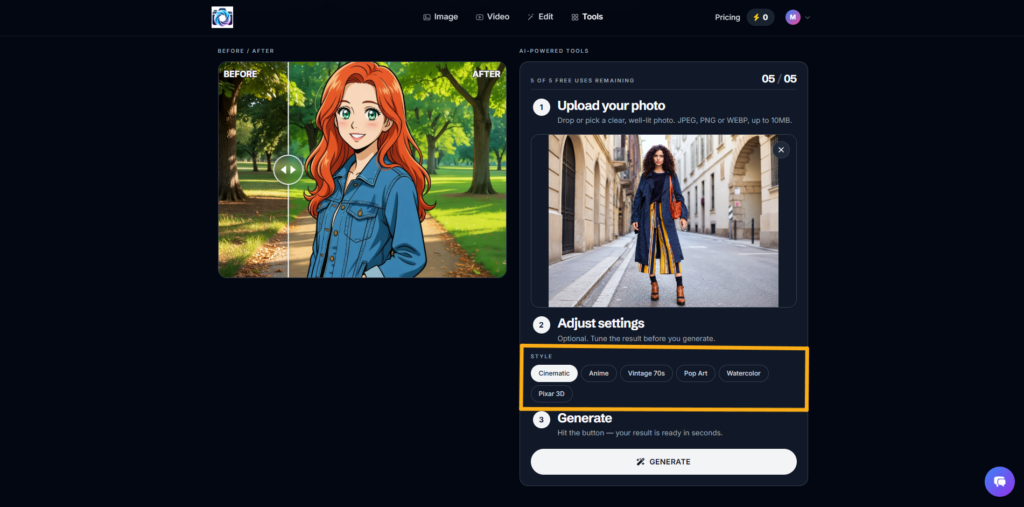
Selecting an artistic style determines the visual direction that Style Snap attempts to apply to the uploaded image. The supplied workflow describes six style choices: cinematic, anime, vintage 70s, pop art, watercolor, and Pixar 3D.
For example, choose Cinematic when you want to explore a movie-inspired appearance, or select Watercolor when you want a painted artistic direction.
Step 5: Generate the AI Variation
The Generate button starts the image transformation process after you select a style. Once the image and settings are ready, activate Generate and wait for the tool to process your photo.
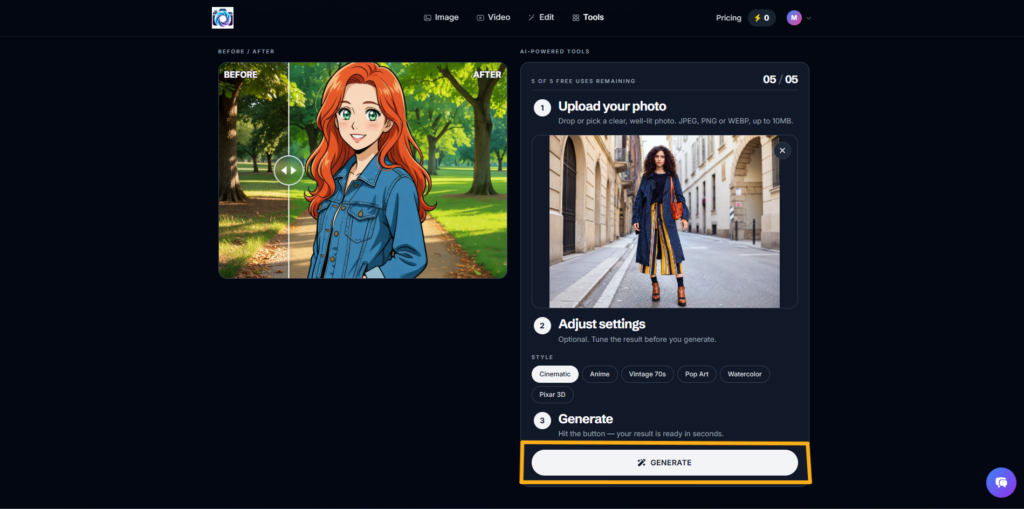
The supplied workflow states that the result is expected to be ready in seconds, but actual processing time can vary depending on the platform and current conditions. Avoid presenting a fixed generation time as a guarantee.
Step 6: Review the Generated Image
Reviewing the generated image helps you determine whether the artistic transformation matches your creative goal. Compare the result with the original photo and look for unwanted changes in facial features, hands, background elements, or other important details.
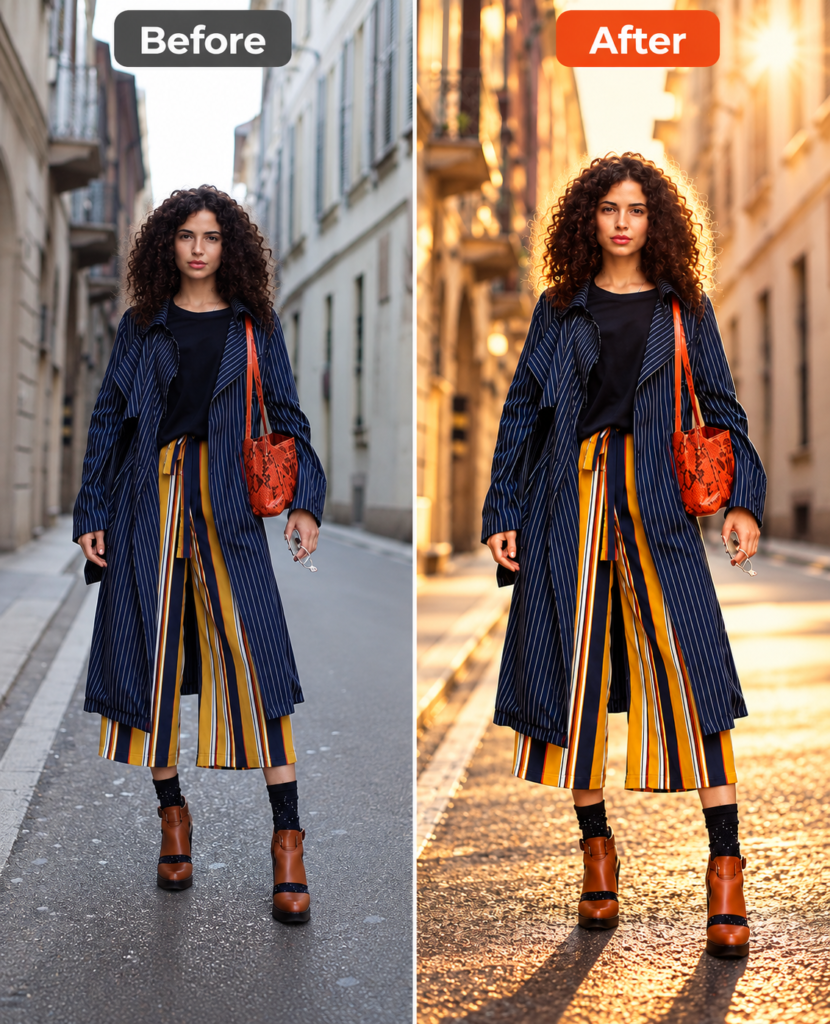
For example, a cinematic portrait may look visually appealing but alter clothing patterns or small facial characteristics. Review the output before using it in a blog, advertisement, or professional campaign.
What Artistic Styles Are Available in Photo AI Studio Style Snap?
Photo AI Studio’s Style Snap page lists six artistic styles: cinematic, anime, vintage 70s, pop art, watercolor, and Pixar 3D. The availability of these options should be confirmed again when publishing because AI tool interfaces and features can change.
| Artistic Style | Visual Direction | Example Application |
|---|---|---|
| Cinematic | Dramatic, movie-inspired appearance | Creative portraits |
| Anime | Illustrated, anime-inspired visual | Social media artwork |
| Vintage 70s | Retro-inspired aesthetic | Nostalgic photo concepts |
| Pop Art | Colorful, graphic appearance | Promotional designs |
| Watercolor | Painted, artistic treatment | Landscape illustrations |
| Pixar 3D | Stylized 3D animated appearance | Character-inspired visuals |
Cinematic Style
Cinematic style aims to give a photo a movie-inspired visual direction. It may be suitable for portraits, storytelling images, and creative social media concepts.
For example, a portrait can be tested with a dramatic visual treatment to explore a film-like mood. The final appearance may vary depending on the original lighting and composition.
Anime Style
Anime style transforms a photo toward an illustrated, anime-inspired appearance. This style may appeal to users who want creative avatars, social media artwork, or character-inspired visuals.
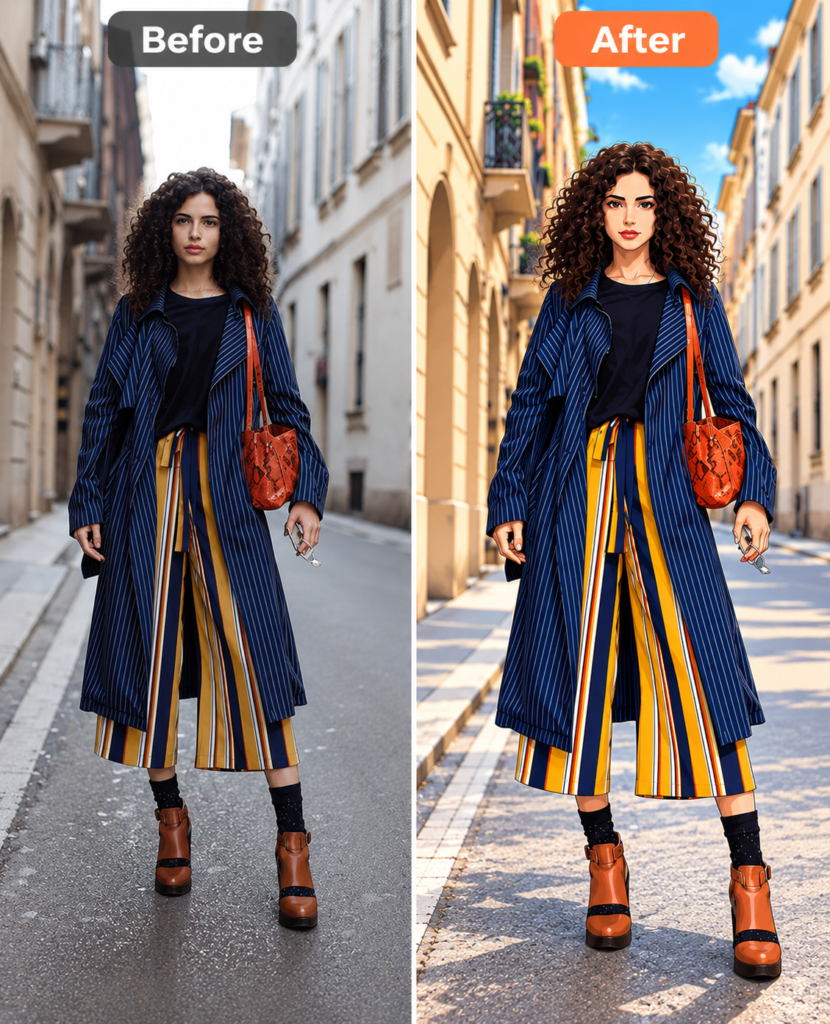
For example, you can test a portrait to see how the AI interprets facial features and hair in an illustrated style. Review the result for changes to identity and important details.
Vintage 70s Style
Vintage 70s style explores a retro-inspired visual aesthetic. This option may suit nostalgic portraits, themed campaigns, or creative photography experiments.
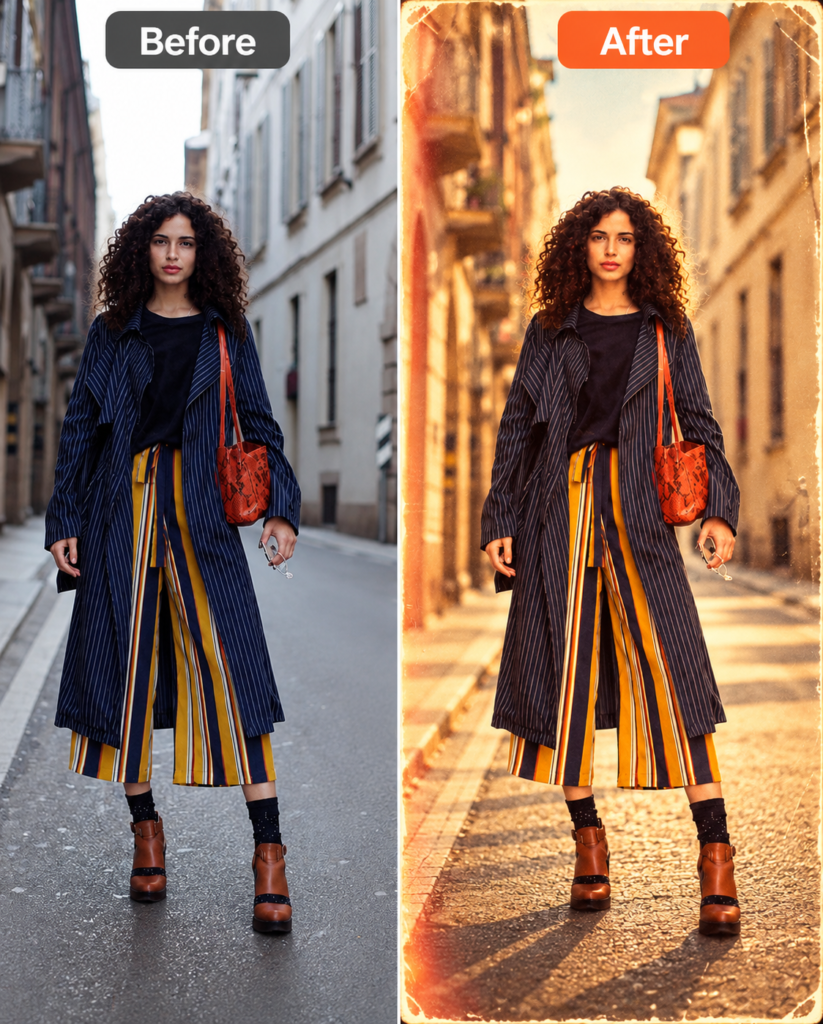
For example, an ordinary portrait can be transformed into a retro-style concept for a social media post. Colors, textures, and facial details may differ from the original image.
Pop Art Style
Pop art style gives a photo a colorful and graphic artistic direction. It can be useful for bold social media visuals, creative posters, and promotional concepts.
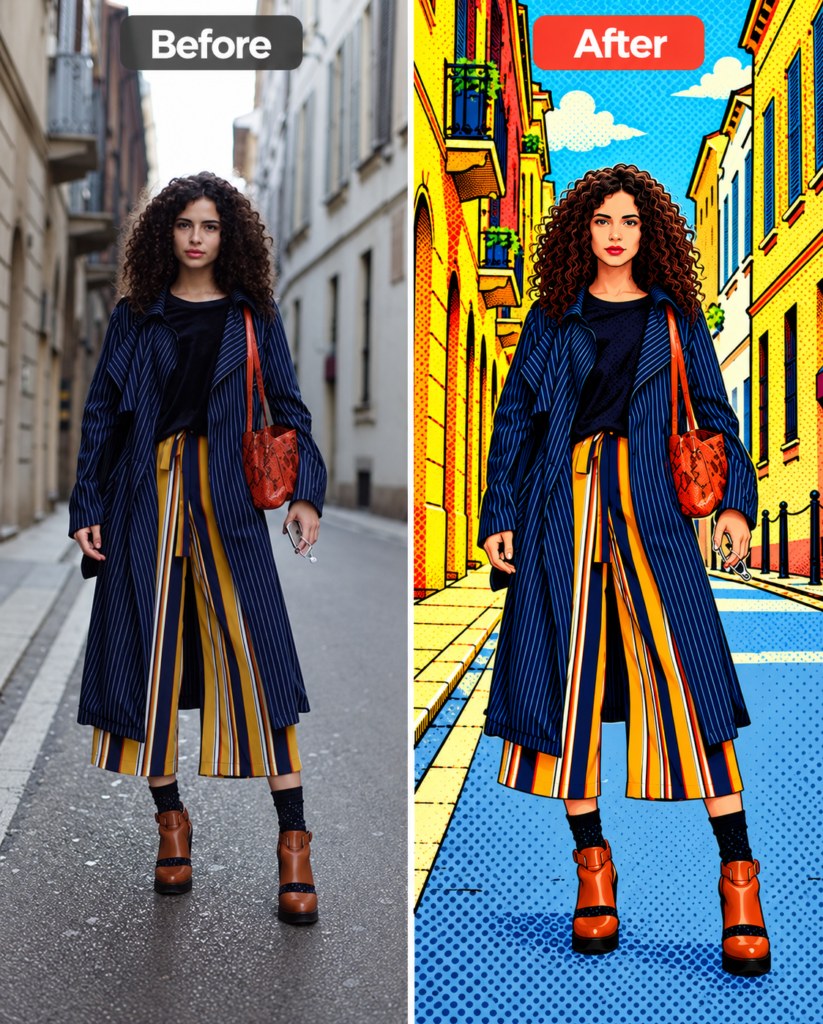
For example, a creator might test a portrait in pop art to explore a more striking visual treatment. The output should be checked for readability and suitability if used in branded content.
Watercolor Style
Watercolor style gives a photo a painting-inspired appearance. This option may be suitable for landscapes, portraits, and artistic illustrations.
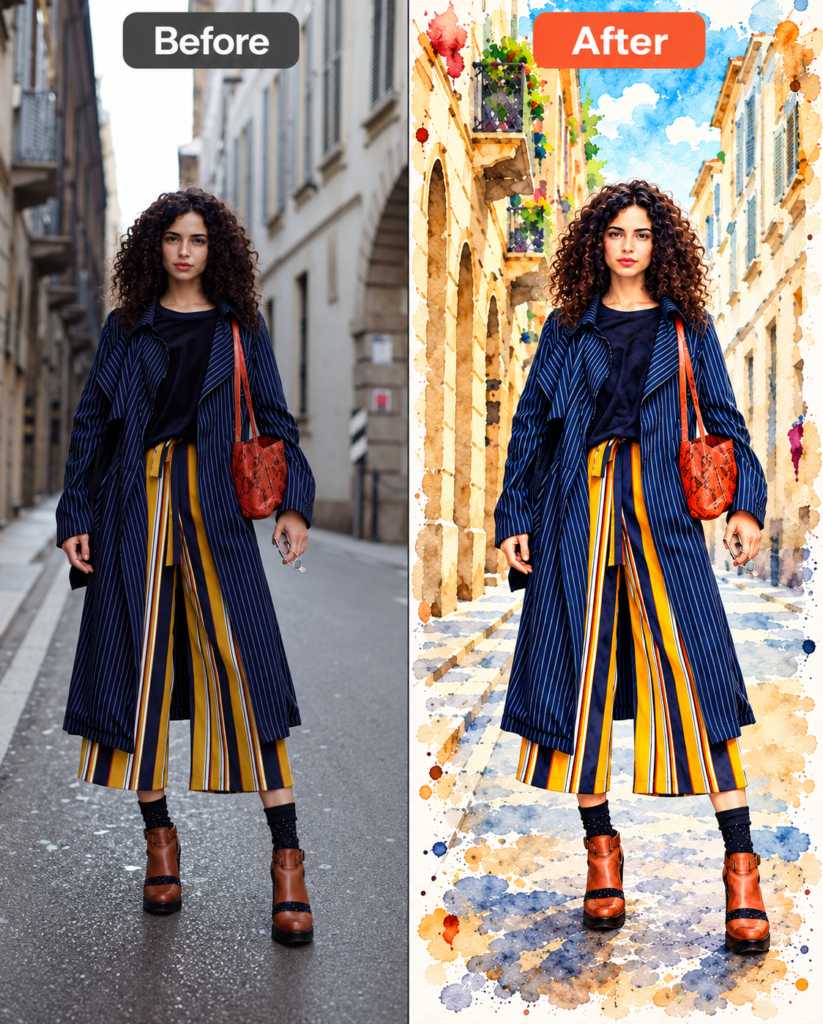
For example, a landscape image can be transformed into a watercolor-inspired visual for a blog header or creative post. Fine details may become softer or less accurate during the transformation.
Pixar 3D Style
Pixar 3D style is described in the supplied tool information as a stylized 3D animated appearance. It may appeal to users exploring animated character-like visual concepts.
For example, a portrait can be tested to see how the AI interprets the subject in a 3D-inspired style. Avoid assuming that the result will match a specific studio’s proprietary character design or artistic output.
What Types of Photos Work Best With Style Snap?
Clear, well-lit photos with a visible subject are practical starting points for AI photo styling experiments. A suitable source image makes it easier to compare the original and generated versions.
For example, a front-facing portrait with reasonable lighting may be easier to review than a heavily blurred or obstructed photo. However, there is no guarantee that one photo type will consistently produce the same quality of result.
Practical Examples of AI Photo Styling
Style Snap can be used to explore artistic variations across portraits, landscapes, and social media visuals. Each example should be treated as a creative experiment rather than a guaranteed outcome.
- Cinematic portrait: Test a portrait for a dramatic, film-inspired direction.
- Watercolor landscape: Explore a painted appearance for an outdoor image.
- Vintage social media photo: Apply a retro-inspired style to a suitable photo.
- Anime-inspired portrait: Create an illustrated variation of a personal image.
- Pop art campaign concept: Explore bold visual treatments for creative marketing ideas.
How Can You Get Better Results With AI Photo Styling?
Better AI photo styling decisions begin with a suitable source image, a relevant style selection, and careful output review. These practices can improve the usefulness of your editing workflow, although they cannot guarantee a particular result.
Practical Tips for Beginners
First, use a clear photo with sufficient lighting and a visible subject. For example, a portrait with the face partially covered may make it harder to evaluate the AI’s treatment of facial details.
Next, choose a style that matches your creative purpose. A watercolor treatment may fit a painted illustration, while pop art may be more appropriate for a bold graphic concept.
Moreover, test different styles rather than assuming the first output is the most suitable. Comparing several variations can help you identify which result best matches your intended appearance.
Finally, review important details before publishing. Check faces, hands, objects, text, colors, and other elements that affect the accuracy or usefulness of the image.
What Are the Limitations of AI Style Snap?
AI Style Snap has limitations because artistic transformations may alter details, produce unexpected results, and depend on the source image. A visually attractive result does not automatically mean that every element has been preserved accurately.
For example, AI may change facial characteristics, background elements, colors, or small objects during image transformation. The impact depends on the input photo and the selected style.
Free Usage and Privacy Considerations
Photo AI Studio’s Style Snap page currently displays five free uses in the retrieved official listing, but usage allowances and availability should be checked on the live page. Free access, account requirements, and limits may change over time.
Privacy and usage rights should be reviewed before uploading personal or commercially sensitive photos. For example, users should check the platform’s applicable privacy policy and determine whether they have permission to upload and publish the images they use.
For sharper and clearer photos, explore our guide on AI image enhancement to improve image quality with AI.
What Other Photo AI Studio Tools Can You Try After Style Snap?
After exploring Style Snap, users can consider other image editing tools based on the specific improvements they need. A styling tool changes artistic appearance, while enhancement, background removal, and other workflows address different image-editing goals.
AI Skin Enhancer
AI Skin Enhancer is a related photo-editing workflow for refining portrait appearance. For example, a creator may explore portrait enhancement after testing an artistic style, provided the resulting image remains suitable for its intended purpose.
Learn how an AI skin enhancer works to improve portrait details and create more polished-looking photos with AI.
AI Image Upscaling
AI image upscaling focuses on increasing image resolution or improving the usability of an image at a larger size. For example, an image intended for a blog illustration may need additional resolution depending on its original dimensions and publishing requirements.
For better image quality, learn how to upscale an image without losing quality using AI tool.
AI Background Remover
AI background removal is a separate editing process that removes or changes an image’s background. For example, a creator may need a transparent product image for a website or promotional design.
Learn how to use a background remover to get transparent images quickly for cleaner product photos, portraits, and creative designs.
Photo AI Studio also offers other AI photo and image-generation workflows, including photo editing and creative tools, so users can explore options according to their project needs.
What Should You Do After Using Style Snap?
The next step after using Style Snap is to compare the generated variations and select the output that best matches your creative objective. A structured review helps you decide whether the image is ready for personal use, social media, or further editing.
For example, you can save your preferred variation, compare it with the original, and then consider whether it needs additional enhancement or background editing.
Recommended Next Steps
- Test multiple styles: Compare artistic directions using a suitable source photo.
- Review visual details: Check whether important elements have changed.
- Match the output to your goal: Select images that suit your intended use.
- Explore related editing workflows: Consider upscaling, skin enhancement, or background removal when necessary.
- Check usage requirements: Review privacy and applicable commercial-use conditions before publication.
Frequently Asked Questions (FAQs)
Q1: What is Style Snap?
A: Style Snap is an AI photo styling tool that creates artistic variations of an uploaded photo. Photo AI Studio currently lists AI Style Snap among its free AI photo tools.
Q2: How does Style Snap work?
A: Style Snap works by applying an AI-powered visual transformation to an uploaded image. The basic workflow involves uploading a photo, choosing a style, generating the result, and reviewing the transformed image.
Q3: Can I use Style Snap to turn a photo into an anime-style image?
A: Yes, an anime-inspired transformation is one possible use of AI photo styling. The exact appearance depends on the selected style and the original photo.
Conclusion: Is Style Snap Worth Exploring for AI Photo Editing?
Style Snap is an AI photo styling tool that helps users explore artistic variations of uploaded images through predefined visual styles. Photo AI Studio’s listed options include cinematic, anime, vintage 70s, pop art, watercolor, and Pixar 3D, offering different creative directions for photo experiments.
Moreover, the tool provides a straightforward workflow: upload a photo, choose a style, generate a variation, and review the output. Its practical value depends on the source image, selected style, and the user’s creative requirements.
Start with one clear photo, test different styles, and choose the result that best fits your creative goal.
The global AI image generator market grew from $11.65 billion in 2025 to $15.18 billion in 2026, a 30.3% year-over-year increase, making image generation the largest standalone segment in generative media.
Have you tried AI photo styling tools like Style Snap? Which artistic style would you test first?
Author Information
Written by: Muthumanickam — SEO, Blogging, Affiliate Marketing, Digital Marketing, and Content Creation Specialist with 5+ years of experience across different platforms.