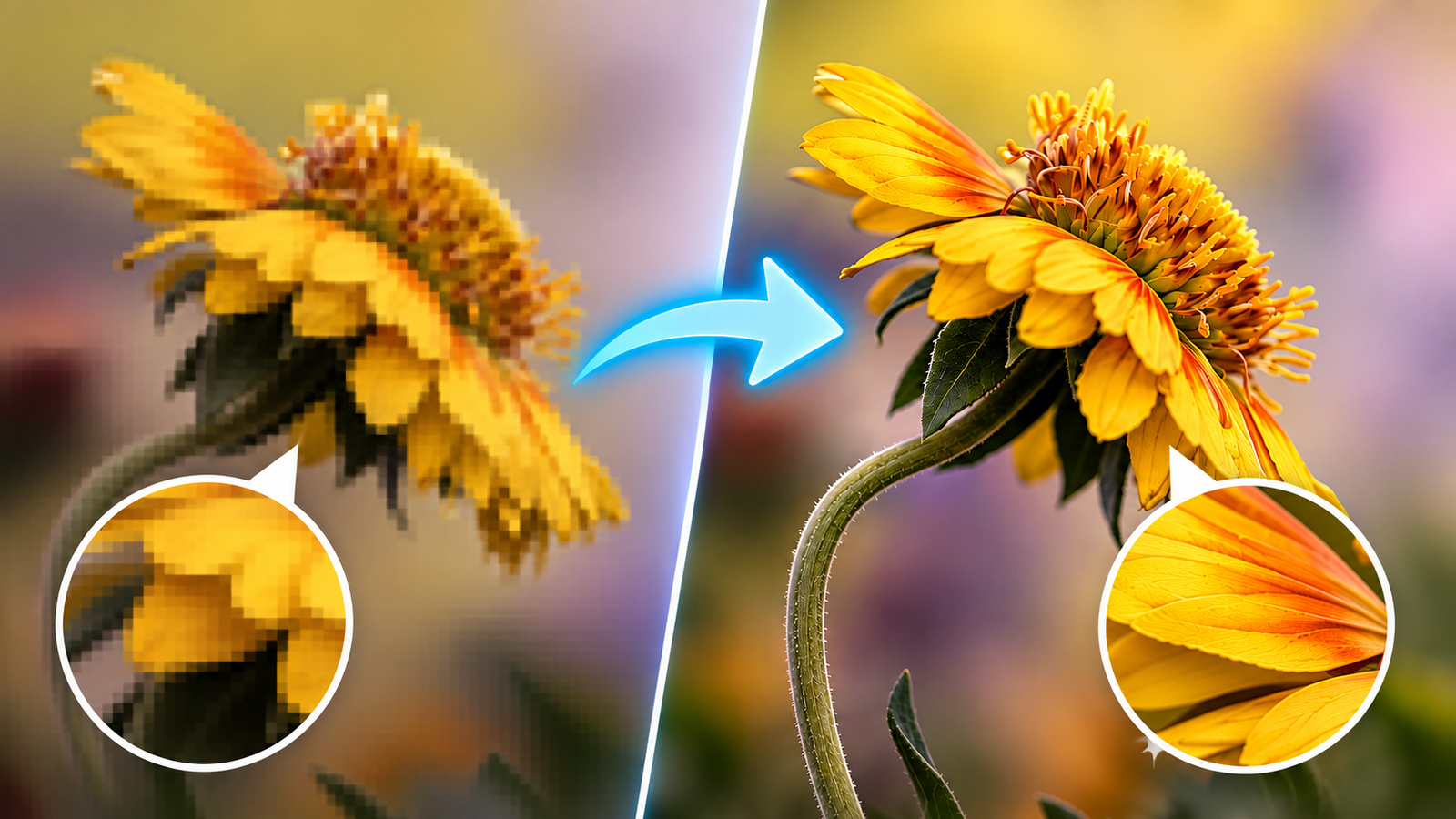
You’ve probably already tried making a small image larger, only to see it become blurry, soft, or pixelated. The real challenge is increasing image resolution while keeping details sharp and natural, and in this guide, we’ll explain Upscale Image, AI enhancement, practical methods, common mistakes, and how to use Photo AI Studio step by step.
Key Takeaways
- Image upscaling increases an image’s pixel dimensions while attempting to preserve or improve perceived detail and quality.
- AI image upscalers can estimate additional visual detail and often produce more natural results than basic image resizing.
- Source-image quality strongly affects the final result because an upscaler cannot perfectly recover information that was never captured.
- AI upscaling can help with portraits, product photos, old photographs, artwork, screenshots, printing, and digital content.
- Full-resolution inspection helps identify blur, artificial textures, halos, and other enhancement artifacts after processing.
- Output dimensions should match the final destination, whether you need an image for social media, a website, presentation, or print.
- Photo AI Studio provides a practical AI-based workflow for enlarging and enhancing existing images.
What Is Image Upscaling and How Does It Work?
Image upscaling is the process of increasing an image’s pixel dimensions while attempting to preserve or improve its perceived detail and quality. A digital photo is made from pixels, so enlarging a 1000 × 1000 image to 2000 × 2000 requires the system to create additional pixel information. For example, a small sunflower photo may look sharp at its original size but reveal visible blocks when enlarged.
First, image resolution describes the amount of visual information represented by an image, while pixel dimensions describe its width and height in pixels. Adobe explains that increasing the number of pixels through upsampling requires software to determine what the newly added pixels should look like.
Moreover, traditional resizing relies on interpolation to calculate new pixels from existing ones. For example, Photoshop provides methods such as Automatic, Preserve Details 2.0, Bicubic, Bilinear, and Nearest Neighbor, with different methods suited to different image types.
AI image upscaling uses machine-learning models to analyze an image and generate additional visual information when increasing its resolution. The result can look more detailed than a simple stretched image, although generated detail should not be confused with perfectly recovered original information.
Why Is Image Upscaling Important for Photo Quality?
Image upscaling matters because larger, higher-resolution images provide more flexibility for digital display, cropping, editing, and printing. For example, a low-resolution product photo may look acceptable inside a small online listing but become visibly soft when used in a large banner.
First, printing requires sufficient pixel information for the intended physical size. Adobe currently recommends 300 PPI for best print quality in Photoshop, while noting that screen and web images commonly use lower PPI values.
Second, upscaling helps creators reuse existing visual assets. A photographer may enlarge an older image, while an e-commerce seller may need a larger product photo for a marketplace banner.
In addition, higher-resolution images give you greater cropping flexibility. For example, you can crop a small section from a larger portrait and still retain enough pixels for a profile image.
Common Reasons to Upscale an Image
Moreover, people commonly upscale images for:
- Printing: Preparing photographs for posters, albums, banners, and larger prints.
- E-commerce: Making product photos clearer and more professional.
- Social media: Improving small images before using them in posts or campaigns.
- Photography: Enlarging older or cropped photographs.
- Presentations: Making images suitable for slides and large displays.
- Websites: Improving visual quality for hero images, blogs, and landing pages.
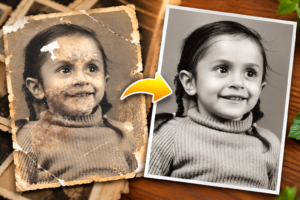
- Old photos: Making scanned or low-resolution photographs more usable.
Google Photos also warns that low-resolution images can produce blurry printouts, showing why adequate image resolution matters beyond digital screens. — Source: Google Photos Help, 2026
How Does AI Image Upscaling Improve Image Resolution?
AI image upscaling improves resolution by analyzing existing visual patterns and estimating plausible additional detail as the image becomes larger. For example, an AI model may recognize edges, textures, facial features, or repeated patterns and use that information when generating enlarged pixels.
First, AI enhancement can combine resolution enlargement with sharpening, noise reduction, and texture reconstruction. Adobe describes modern AI upscaling features as tools for improving detail, clarity, sharpness, and resolution.
Second, AI does not magically recover every missing original pixel. If a tiny photograph contains no usable information about a person’s facial features, an upscaler cannot guarantee an accurate reconstruction of those features.
For example, an extremely blurry 200 × 200 portrait may become cleaner and more detailed-looking after AI enhancement, but the result should still be treated as an enhanced interpretation rather than a perfect copy of information that was never recorded.
The quality of an upscaled image depends heavily on the original image because an AI upscaler cannot perfectly recover details that were never captured in the source.
What Is the Difference Between Image Resizing and AI Upscaling?
Image resizing changes an image’s dimensions, while AI upscaling uses learned visual patterns to create more sophisticated enlarged results. For example, basic resizing may stretch a 1000 × 1000 image to 2000 × 2000, while an AI model can attempt to reconstruct sharper edges and textures during enlargement.
| Method | How It Works | Best For | Main Limitation |
|---|---|---|---|
| Traditional resizing | Interpolates new pixels | Simple size changes | Can look soft or pixelated |
| Photoshop resampling | Uses selectable algorithms | Controlled editing | Requires more manual control |
| Online upscalers | Processes images through a web interface | Quick improvements | Features and output limits vary |
| AI upscaling | Estimates additional visual detail | Low-resolution photos | Can create artificial details |
| AI enhancement workflow | Upscaling plus sharpening/noise handling | Professional-looking results | Quality depends on source and model |
First, traditional interpolation is useful when you only need a modest size change. Photoshop’s Preserve Details 2.0, for example, is specifically designed for enlarging images while reducing artifacts.
Second, AI upscaling is generally more useful when the original image is too small for the intended purpose. Adobe’s current tools include 2x and 4x generative upscaling options, demonstrating how AI-based enlargement can go beyond ordinary dimension changes.
How Can You Upscale an Image Without Losing Quality?
You can upscale an image more successfully by starting with the highest-quality source, choosing a reasonable enlargement level, and checking the final result at full resolution. For example, a clean 1200 × 1200 original is usually a better starting point than a heavily compressed 300 × 300 thumbnail.
First, always use the original file when possible. A downloaded social-media copy may already contain compression and reduced resolution that limits the final result.
Second, avoid unnecessary enlargement. If you only need a 150% increase, there is little reason to immediately push the image to an extreme size.
Third, inspect important areas after processing. Check faces, text, hair, product labels, edges, and repeated patterns because AI artifacts can become visible at 100% zoom.
Successful image upscaling depends on both the source image and the enhancement method.
How Do You Upscale an Image With AI Step by Step?
You can upscale an image with AI by uploading the source image to an AI image upscaler, processing it, and comparing the enhanced result with the original. Photo AI Studio provides a straightforward workflow for this process.
Photo AI Studio

Step 1: Open Photo AI Studio
First, open your browser and go to Photo AI Studio. Once the website loads, you’ll see the main navigation at the top, including options such as Create Image, Create Video, Edit & Enhance, Tools, Blog, and My Images.
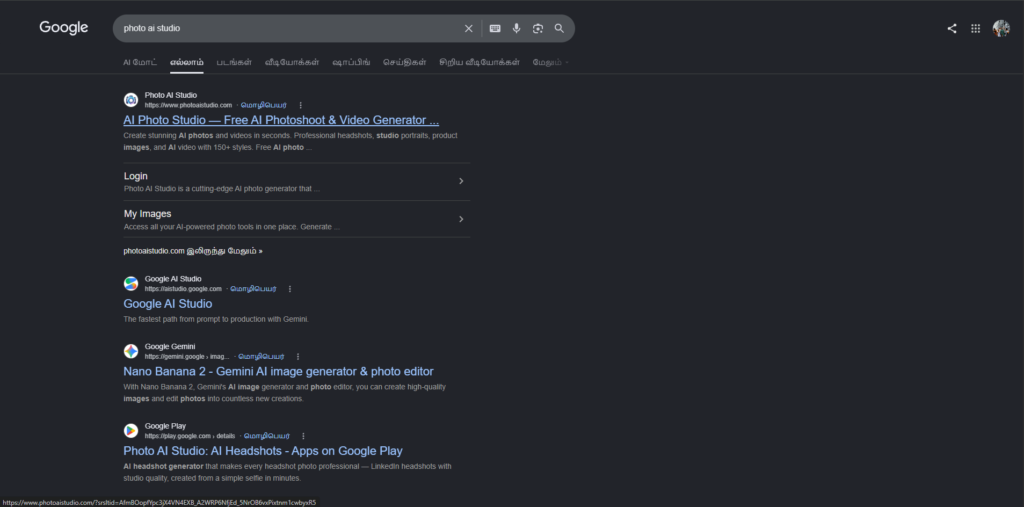
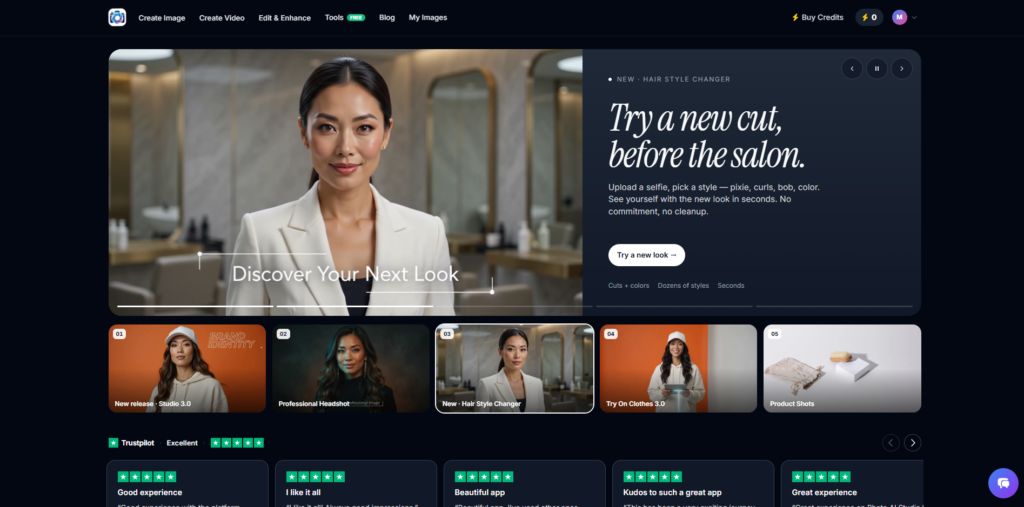
Next, select Edit & Enhance because the goal is to improve an existing image rather than create a completely new one.
Step 2: Choose Enhance Image
Second, click Enhance Image inside the Edit & Enhance section. This opens the Enhance / Upscale Image page, where the tool is designed to increase image resolution using AI.
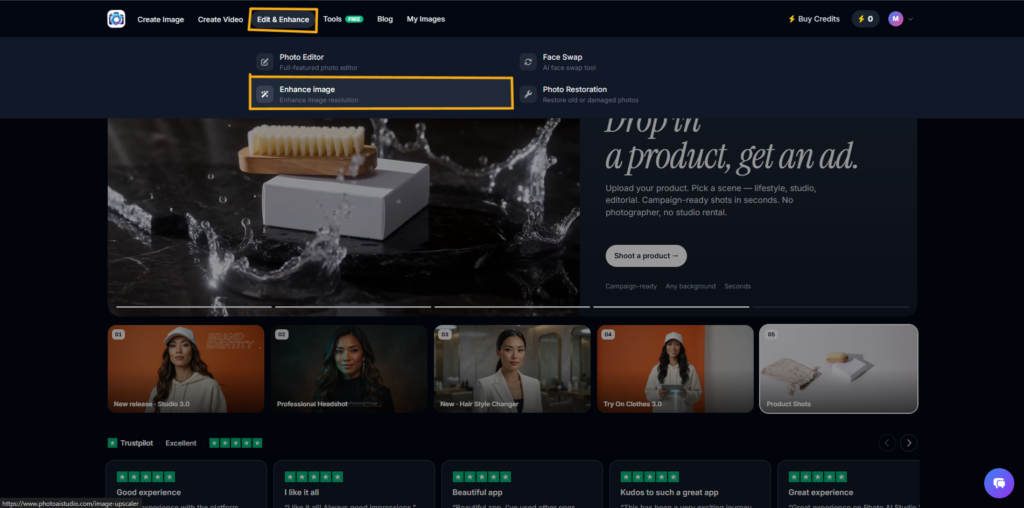
At this stage, you’re working with an existing photo, making the workflow suitable for portraits, product images, old photographs, and other low-resolution visuals.
Step 3: Upload Your Image
Third, upload the image you want to enhance. The interface provides options such as Gallery, Camera, Upload, and My Uploads, giving you several ways to select your source.
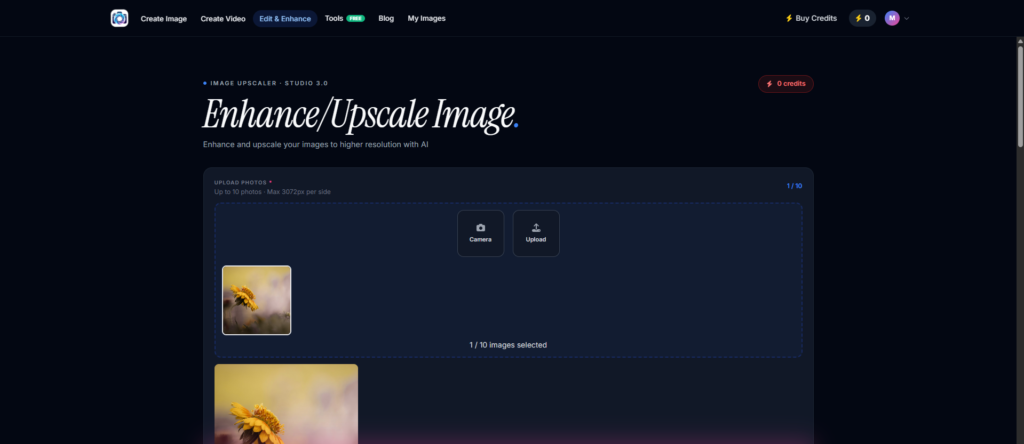
For this example, use a sunflower photograph. The interface indicates support for up to 10 photos and a maximum size of 3072 pixels per side.
Step 4: Generate the Enhanced Image
Fourth, click Generate after confirming your uploaded image. Photo AI Studio then processes the photo using its AI enhancement workflow.
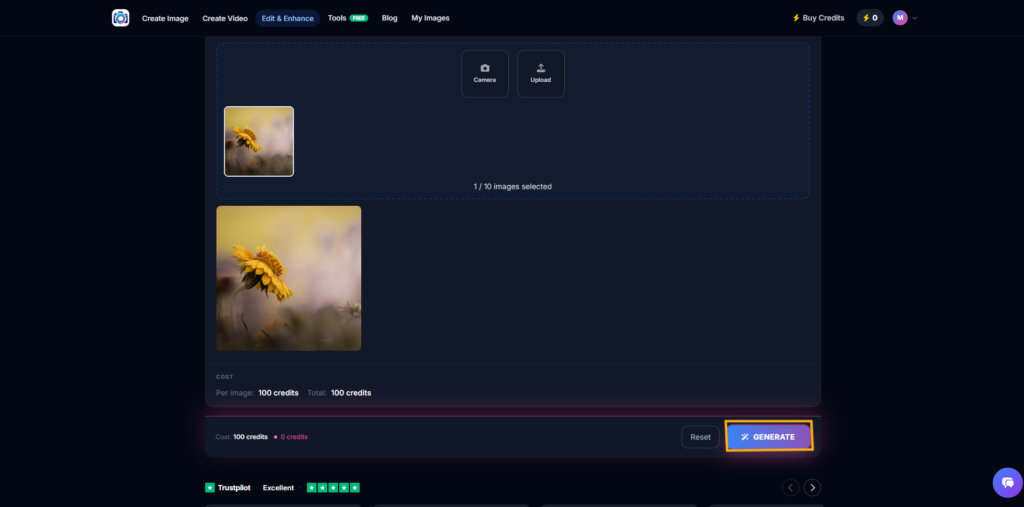
The processing stage is where the tool attempts to improve resolution and perceived detail while creating the enlarged result.
Step 5: Compare the Original and Enhanced Images
Finally, compare the original and enhanced versions side by side. Look closely at edges, textures, fine details, and areas that were previously soft.
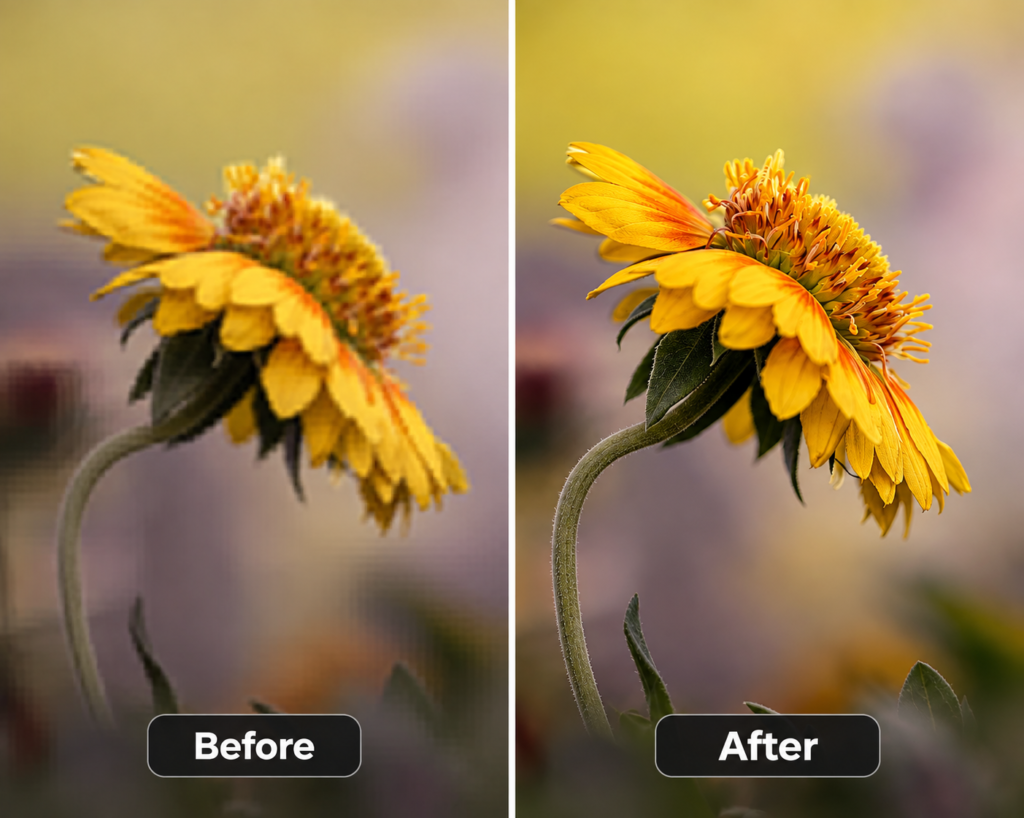
A side-by-side comparison is more reliable than simply looking at the enhanced image because it lets you identify whether detail actually improved or whether sharpening introduced unwanted artifacts.
What Types of Images Can You Upscale With AI?
AI image upscaling works with many image categories, including portraits, product photos, old photographs, artwork, screenshots, and social media graphics. For example, a small product photograph can be enlarged for a website banner while an old scanned photograph can be prepared for a larger digital display.
First, portraits can benefit from careful AI enhancement because faces contain recognizable structures and fine details. However, excessive enhancement may create unnatural skin texture or facial features.
Second, product photos often benefit from cleaner edges and more visible textures. Adobe specifically highlights low-resolution logos and product photos as use cases for its current generative upscaling tools.
Third, old and scanned photos can be enlarged for modern use. AI can improve clarity and make these images more practical for printing, archiving, or sharing.
Useful categories include:
- Portraits and profile photos
- Old family photographs
- E-commerce product images
- Artwork and illustrations
- Screenshots
- Social media graphics
- Website images
- Scanned photographs
- Small logos and marketing assets
Can You Upscale a Low-Resolution or Blurry Image?
You can upscale a low-resolution or blurry image, but the quality of the result depends strongly on how much usable information remains in the original. For example, an image with mild softness may become noticeably clearer, while a severely blurred image may still lack reliable fine details.
Moreover, AI enhancement should be treated as reconstruction rather than perfect recovery. A model can generate plausible textures, edges, or facial details, but it cannot guarantee that every generated detail matches the original scene.
That being said, AI upscaling can be particularly useful when the original high-resolution source is unavailable. Adobe’s current Generative Upscale tools explicitly target low-resolution and low-detail images and offer 2x or 4x enlargement options.
You can also learn how to generate AI photos using text or reference images for creating new visuals.
What Is the Best Image Upscaler for Increasing Resolution?
The best image upscaler is one that produces natural-looking detail while giving you the output size, controls, compatibility, and workflow you actually need. For example, a casual user may prioritize simplicity, while a photographer may care more about fine-detail preservation and output control.
First, compare tools based on:
- Maximum output resolution
- Upscaling levels
- Detail preservation
- Face enhancement
- Noise reduction
- Sharpening quality
- Supported file formats
- Processing speed
- Ease of use
- Pricing and usage limits
Adobe’s current image tools provide examples of different approaches: Firefly offers 2x and 4x online upscaling, while Photoshop’s Generative Upscale supports selectable models and 2x or 4x output scales.
At the same time, Photo AI Studio is a practical option when you want an accessible workflow for uploading and enhancing existing photos. Its Enhance Image feature brings image enhancement and upscaling into a simple browser-based process.
Free and established alternatives can also be useful. Adobe Firefly offers an online AI image upscaler with free daily generations for users with an Adobe account, subject to its current plan limits. — Source: Adobe, 2026
What Image Size and Resolution Should You Choose After Upscaling?
The correct image size depends on where the image will be used, not simply on choosing the largest possible resolution. For example, a website image may need very different dimensions from a large printed poster.
First, match pixel dimensions to the final destination. A social-media graphic, presentation image, product listing, and print file can each have different requirements.
Second, consider print resolution separately from pixel dimensions. Adobe’s Photoshop guidance states that 300 PPI is commonly used for best print quality, while screen and web work can use lower PPI values.
Third, avoid enlarging an image beyond what the final output requires. A massive file does not automatically mean a better-looking image, especially if the extra pixels contain artificial textures or artifacts.
For example, Google Photos notes that 16 MP photos can be printed at good quality up to approximately 60 × 40 cm under its stated conditions. — Source: Google Photos Help, 2026
What Are the Common Problems With AI Image Upscaling?
Common AI upscaling problems include artificial textures, excessive sharpening, halos, inaccurate facial details, and invented patterns. For example, a shirt texture may look unusually repetitive after aggressive enhancement.
First, inspect the image at 100% zoom before exporting. This makes small artifacts easier to identify than viewing the image as a tiny thumbnail.
Second, watch for over-sharpening around edges. Strong halos around hair, objects, text, or buildings can make an image look processed rather than natural.
Third, check faces and text carefully. AI enhancement may improve clarity but can also alter small facial features or distort unreadable lettering.
Adobe similarly recommends reviewing sharpening, noise reduction, and texture settings after Super Resolution because these controls affect fine details. — Source: Adobe Blog, 2021
What Should You Do After Upscaling an Image?
After upscaling an image, inspect it at full resolution, correct visible artifacts, choose the appropriate file format, and export it at the dimensions required for its final use. For example, a print image should be checked differently from a compressed social-media graphic.
Next, follow this simple checklist:
- Inspect at 100% zoom for blur, halos, noise, and artificial textures.
- Check important details such as faces, text, product labels, and edges.
- Crop only if necessary to avoid throwing away useful pixels.
- Apply light sharpening if the image still appears soft.
- Choose an appropriate format such as JPEG or PNG based on the project.
- Confirm final dimensions before uploading or printing.
- Keep the original file so you can compare or reprocess it later.
By following these steps, you can avoid treating the largest possible output as automatically the best output.
What Are the Next Steps for Upscaling Images?
The next step is to test an AI image upscaler on a real image and compare the result against the original at full resolution. For example, choose one low-resolution photograph that you actually need for a website, print project, or social post and use it as your test image.
First, choose the highest-quality original available rather than starting with a compressed copy. Then, select a moderate enlargement level and inspect the result carefully.
Second, compare at least two approaches when quality matters. A basic resize can serve as a useful baseline, while an AI upscaler can show whether enhanced detail provides a meaningful improvement.
Third, save both versions. Keeping the original and enhanced files makes it easier to evaluate changes and prevents you from losing the source image.
Frequently Asked Questions (FAQs)
Q1: What does upscale image mean?
A: Upscale image means increasing the pixel dimensions and resolution of an image while trying to preserve or improve its visual quality.
Q2: How can I upscale image without losing quality?
A: You can upscale image without losing noticeable quality by starting with the highest-quality original available and using an AI image upscaler that enhances details during enlargement.
Q3: Can I upscale image online?
A: Yes, you can upscale image online using AI-powered image upscaling tools. These tools let you upload an image, process it, and download the enhanced version.
Q4: Can AI upscale image quality?
A: Yes, AI can upscale image quality by analyzing existing patterns and generating plausible additional details while also improving sharpness and reducing some visible noise.
Q5: What types of images can I upscale?
A: You can upscale image files such as portraits, product photos, old photographs, artwork, screenshots, website graphics, and social media images.
Q6: What is the best way to upscale image resolution?
A: The best way to upscale image resolution depends on your needs, but AI-powered upscaling is often useful when you want to enlarge an image while improving perceived detail and sharpness.
Q7: How do I upscale image with Photo AI Studio?
A: To upscale image with Photo AI Studio, open the website, select Edit & Enhance, choose Enhance Image, upload your photo, and click Generate to process the image.
Conclusion: How to Upscale Images Without Losing Quality
Upscaling an image without noticeably losing quality requires the right source image, an appropriate enlargement method, and careful inspection of the final result. Traditional resizing works for simple dimension changes, while AI image upscaling can produce more detailed-looking results by estimating additional visual information.
Moreover, AI upscaling can be useful for portraits, product photos, old photographs, artwork, screenshots, websites, social media, and print projects. The most important limitation is that AI cannot perfectly recover information that was never captured.
Finally, Photo AI Studio provides a practical workflow for uploading an existing photo and using AI enhancement to create an enlarged version. If you have a blurry or low-resolution image, try the process with your own photo, compare the original and enhanced versions side by side, and choose the result that looks natural at full resolution.
Image upscaling increases pixel dimensions; AI upscaling additionally attempts to improve the visual detail of those enlarged pixels.
Written by: Muthumanickam — SEO and Content Creation Specialist with 5+ years of experience across blogging, affiliate marketing, SEO, and multiple digital content platforms.
Pingback: How Does an AI Skin Enhancer Work? A Step-by-Step Guide - aitooltrusted.com